A post describing how to bind an image such as a bitmap or png file to your viewmodel.
In Visual Studio create a new WPF project:
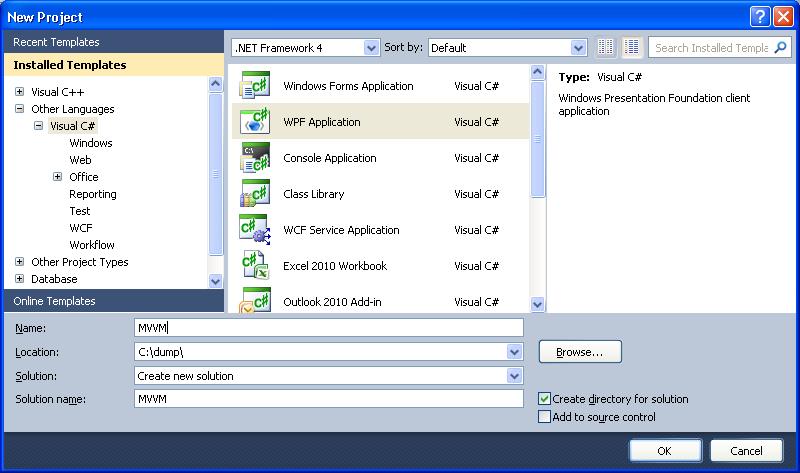
Observe that this creates the initial default XAML for the main window as shown:
MainWindow.xaml
<Window x:Class="MVVM.MainWindow"
        xmlns="http://schemas.microsoft.com/winfx/2006/xaml/presentation"
        xmlns:x="http://schemas.microsoft.com/winfx/2006/xaml"
        Title="MainWindow" Height="350" Width="525">
    <Grid>

    </Grid>
</Window>
Which when running the program produces the following blank window:
Initial Window

Now we need to add the ViewModel class, as is used in the Model-View ViewModel pattern. In Visual Studio add a new class representing the ViewModel for our main window XAML and call it MainWindowViewModel.cs:
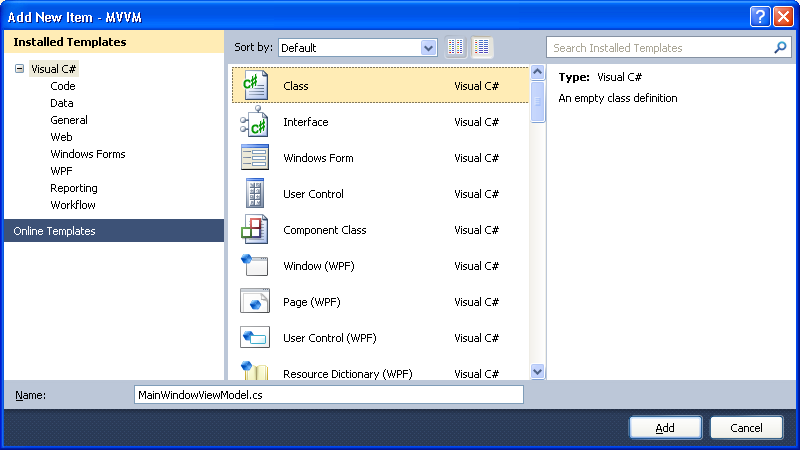
And configure the code so we have a property for returning the bitmap image in a format that is suitable for our WPF. Also in this class is a static method for converting a general bitmap format into a BitmapSource type:
using System;
using System.Drawing.Imaging;
using System.Drawing;
using System.Windows.Media.Imaging;
using System.Windows;

namespace MVVM
{
   public static class BitmapConversion
   {
       public static BitmapSource BitmapToBitmapSource(Bitmap source)
       {
           return System.Windows.Interop.Imaging.CreateBitmapSourceFromHBitmap(
                         source.GetHbitmap(),
                         IntPtr.Zero,
                         Int32Rect.Empty,
                         BitmapSizeOptions.FromEmptyOptions());
       }
   }

   public class MainWindowViewModel
   {
      private BitmapSource _bitmapSource;

      public MainWindowViewModel()
      {
         Bitmap bitmap = (Bitmap) Bitmap.FromFile(@"c:\dump\bulb.png", true);
         _bitmapSource = BitmapConversion.BitmapToBitmapSource(bitmap);
      }

      public BitmapSource ButtonSource
      {
         get { return _bitmapSource; }
      }
   }
}
If you have trouble compiling the source make sure all the references are installed, particularly System.Drawing:

And of course be sure that your program is able to find the location of the image file that we are binding to, in my example it is “C:\dump\bulb.png”:
public MainWindowViewModel()
{
    Bitmap bitmap = (Bitmap) Bitmap.FromFile(@"c:\dump\bulb.png", true);
    _bitmapSource = BitmapConversion.BitmapToBitmapSource(bitmap);
}
Modify the MainWindow.xaml to include the DataContext and to insert a new button containing the image we wish to bind to:
<Window x:Class="MVVM.MainWindow"
        xmlns="http://schemas.microsoft.com/winfx/2006/xaml/presentation"
        xmlns:x="http://schemas.microsoft.com/winfx/2006/xaml"
        xmlns:mc="http://schemas.openxmlformats.org/markup-compatibility/2006"
        xmlns:d="http://schemas.microsoft.com/expression/blend/2008"
        xmlns:VM="clr-namespace:MVVM"
        Title="MainWindow"
        Height="234"
        Width="326">

    <Window.DataContext>
        <VM:MainWindowViewModel />
    </Window.DataContext>

    <Grid>
        <Button HorizontalAlignment="Left" Margin="35,0,0,138" VerticalAlignment="Bottom" Width="75" Height="29">
            <Image Source="{Binding ButtonSource}" HorizontalAlignment="Stretch" VerticalAlignment="Stretch" Margin="0">
            </Image>
        </Button>
    </Grid>
</Window>
Compiling and running this gives the following Window, this time with button containing the XAML-bounded image:

Download Visual Studio 2010 project from here: