Very useful StackOverflow link, Mark Green‘s answer, from which I have borrowed heavily here, with one or two modifications in order to fully work in a Visual Studio 2015 environment.
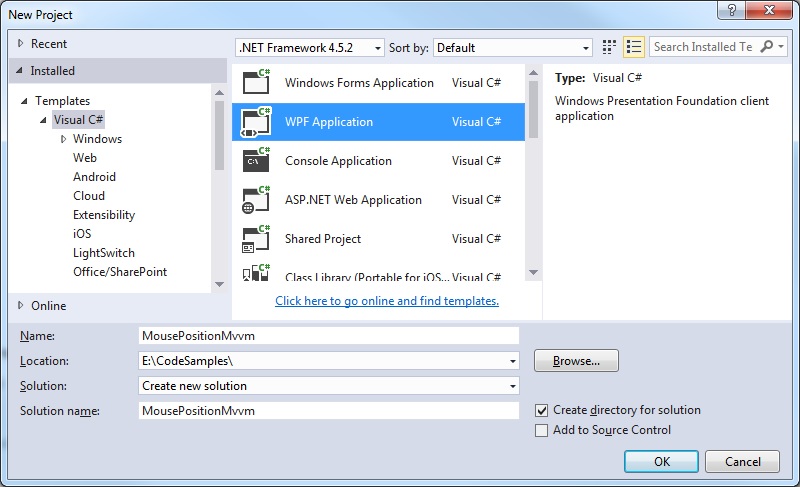
Step 1: Create a new WPF project
Step 2: Create an example WPF window
MainWindow.xaml
<Window x:Class="MousePositionMvvm.MainWindow"
        xmlns="http://schemas.microsoft.com/winfx/2006/xaml/presentation"
        xmlns:x="http://schemas.microsoft.com/winfx/2006/xaml"
        xmlns:d="http://schemas.microsoft.com/expression/blend/2008"
        xmlns:mc="http://schemas.openxmlformats.org/markup-compatibility/2006"
        xmlns:local="clr-namespace:MousePositionMvvm"
        xmlns:i="http://schemas.microsoft.com/expression/2010/interactivity"
        mc:Ignorable="d"
        Title="MainWindow" Height="450" Width="525">

    <Window.DataContext>
        <local:MainWindowViewModel />
    </Window.DataContext>

    <Grid>
        <DockPanel>
            <StackPanel DockPanel.Dock="Top" Orientation="Horizontal">
                <TextBlock Text="{Binding PanelX, StringFormat='X={0}'}" />
                <TextBlock Text="{Binding PanelY, StringFormat='y={0}'}" />
            </StackPanel>
            <Canvas DockPanel.Dock="Bottom" Background="Aqua">
                <i:Interaction.Behaviors>
                    <local:MouseBehaviour MouseX="{Binding PanelX, Mode=OneWayToSource}"
                                          MouseY="{Binding PanelY, Mode=OneWayToSource}" />
                </i:Interaction.Behaviors>
            </Canvas>
        </DockPanel>
    </Grid>
</Window>
We will use this window to showcase how the mouse cursor position is constantly read and updated.
Step 3: Create the MVVM View Model class
We will use this class four our X/Y coordinate bindings
MainWindowViewModel.cs
using System;
using System.ComponentModel;
using System.Diagnostics;

namespace MousePositionMvvm
{
   public class MainWindowViewModel : INotifyPropertyChanged
   {
      private double _panelX;
      private double _panelY;

      public double PanelX
      {
         get { return _panelX; }
         set
         {
            if (value.Equals(_panelX)) return;
            _panelX = value;
            OnPropertyChanged("PanelX");
         }
      }

      public double PanelY
      {
         get { return _panelY; }
         set
         {
            if (value.Equals(_panelY)) return;
            _panelY = value;
            OnPropertyChanged("PanelY");
         }
      }

      public event PropertyChangedEventHandler PropertyChanged;

      protected void OnPropertyChanged(string propertyName)
      {
         VerifyPropertyName(propertyName);
         var handler = PropertyChanged;
         handler?.Invoke(this, new PropertyChangedEventArgs(propertyName));
      }

      [Conditional("DEBUG")]
      private void VerifyPropertyName(string propertyName)
      {
         if (TypeDescriptor.GetProperties(this)[propertyName] == null)
            throw new ArgumentNullException(GetType().Name + " does not contain property: " + propertyName);
      }
   }
}
Step 4: Create an attached behaviour class
MouseBehaviour.cs
using System.Windows;
using System.Windows.Controls;
using System.Windows.Input;
using System.Windows.Interactivity;

namespace MousePositionMvvm
{
   public class MouseBehaviour : Behavior<Panel>
   {
      public static readonly DependencyProperty MouseYProperty = DependencyProperty.Register(
         "MouseY", typeof(double), typeof(MouseBehaviour), new PropertyMetadata(default(double)));

      public static readonly DependencyProperty MouseXProperty = DependencyProperty.Register(
         "MouseX", typeof(double), typeof(MouseBehaviour), new PropertyMetadata(default(double)));

      public double MouseY
      {
         get { return (double) GetValue(MouseYProperty); }
         set { SetValue(MouseYProperty, value); }
      }

      public double MouseX
      {
         get { return (double) GetValue(MouseXProperty); }
         set { SetValue(MouseXProperty, value); }
      }

      protected override void OnAttached()
      {
         AssociatedObject.MouseMove += AssociatedObjectOnMouseMove;
      }

      private void AssociatedObjectOnMouseMove(object sender, MouseEventArgs mouseEventArgs)
      {
         var pos = mouseEventArgs.GetPosition(AssociatedObject);
         MouseX = pos.X;
         MouseY = pos.Y;
      }

      protected override void OnDetaching()
      {
         AssociatedObject.MouseMove -= AssociatedObjectOnMouseMove;
      }
   }
}
Step 5: Add necessary references
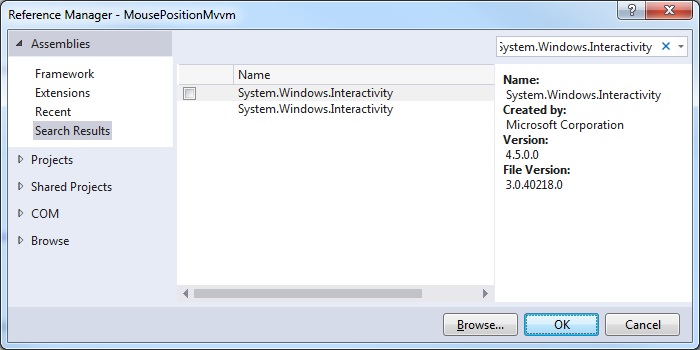
In this example we need to add a reference to System.Windows.Interactivity.
This will allow us to continuously monitor the mouse position as it is being moved around the screen.
Right-click your References folder and select Add reference…
Step 6: Try it
Observe how mouse coordinate position is continuously updated:
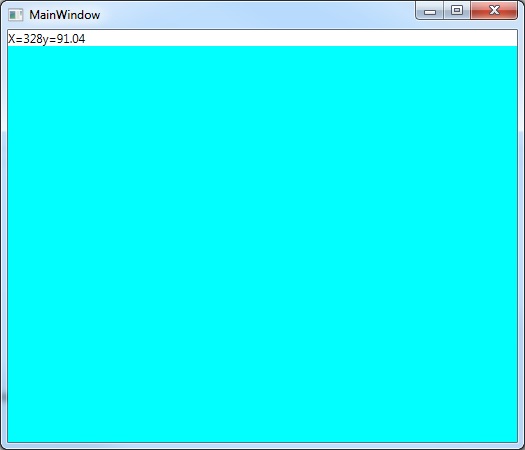
NOTE: this does not have to be a canvas control – it can be any control you like (eg Button) and of any size, so long as this is specified in the attached behaviour class also.