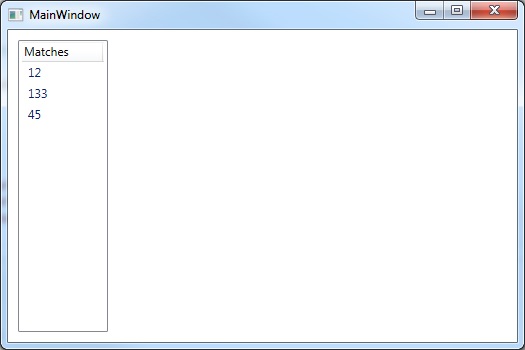
Some instructions for setting the visibility of GridViewColumn items in WPF.
Some useful StackOverflow links as follows:
https://stackoverflow.com/questions/1392811/c-wpf-make-a-gridviewcolumn-visible-false
Helge Klein‘s contribution was particularly useful.
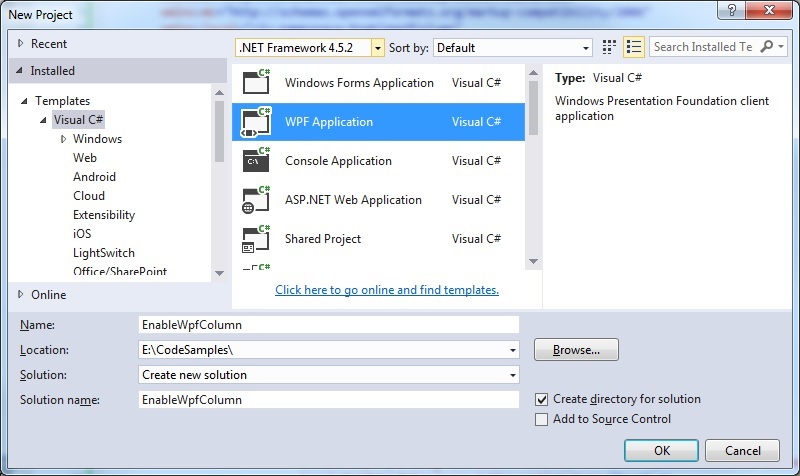
Step 1: Create a new WPF application
Step 2: Create the ViewModel class
Our ViewModel class for inserting items into our ListView plus other required properties…
Inherits from INotifyPropertyChanged in order to implement the OnPropertyChanged.
MainWindowViewModel.cs
using System.Collections.Generic;
using System.ComponentModel;
using System.Runtime.CompilerServices;
using EnableWpfColumn.Annotations;

namespace EnableWpfColumn
{
   public class Item
   {
      public Item(string name, string matches)
      {
         Name = name;
         Matches = matches;
      }

      public string Name { get; set; }
      public string Matches { get; set; }
   }

   public class ItemHandler
   {
      public ItemHandler()
      {
         Items = new List<Item>();
      }

      public List<Item> Items { get; set; }

      public void Add(Item item)
      {
         Items.Add(item);
      }
   }

   public class MainWindowViewModel : INotifyPropertyChanged
   {
      private readonly ItemHandler _itemHandler;
      private bool _nameColumnVisible;

      public MainWindowViewModel()
      {
         _itemHandler = new ItemHandler();
         _itemHandler.Add(new Item("John Doe", "12"));
         _itemHandler.Add(new Item("Jane Doe", "133"));
         _itemHandler.Add(new Item("Sammy Doe", "45"));

         _nameColumnVisible = true;
      }

      public List<Item> Items
      {
         get { return _itemHandler.Items; }
         set
         {
            if (_itemHandler != null) _itemHandler.Items = value;
            OnPropertyChanged(nameof(Items));
         }
      }

      public bool NameColumnVisible
      {
         get { return _nameColumnVisible; }
         set
         {
            if (_itemHandler != null) _nameColumnVisible = value;
            OnPropertyChanged(nameof(NameColumnVisible));
         }
      }

      public event PropertyChangedEventHandler PropertyChanged;

      [NotifyPropertyChangedInvocator]
      protected virtual void OnPropertyChanged([CallerMemberName] string propertyName = null)
      {
         PropertyChanged?.Invoke(this, new PropertyChangedEventArgs(propertyName));
      }
   }
}
Step 3: Incorporate the standard boolean-to-visibility conversion in your app
App.xaml
<Application x:Class="EnableWpfColumn.App"
             xmlns="http://schemas.microsoft.com/winfx/2006/xaml/presentation"
             xmlns:x="http://schemas.microsoft.com/winfx/2006/xaml"
             StartupUri="MainWindow.xaml">
    <Application.Resources>
        <BooleanToVisibilityConverter x:Key="BoolToVisibilityConverter" />
    </Application.Resources>
</Application>
Step 4: Create an attached property on the header to set the column’s width to zero
GridViewBehaviours.cs
using System.Windows;
using System.Windows.Controls;

namespace EnableWpfColumn
{
   public class GridViewBehaviours
   {
      public static readonly DependencyProperty CollapseableColumnProperty =
         DependencyProperty.RegisterAttached("CollapseableColumn", typeof(bool), typeof(GridViewBehaviours),
            new UIPropertyMetadata(false, OnCollapseableColumnChanged));

      public static bool GetCollapseableColumn(DependencyObject d)
      {
         return (bool) d.GetValue(CollapseableColumnProperty);
      }

      public static void SetCollapseableColumn(DependencyObject d, bool value)
      {
         d.SetValue(CollapseableColumnProperty, value);
      }

      private static void OnCollapseableColumnChanged(DependencyObject sender, DependencyPropertyChangedEventArgs args)
      {
         var header = sender as GridViewColumnHeader;
         if (header == null)
            return;

         header.IsVisibleChanged += AdjustWidth;
      }

      private static void AdjustWidth(object sender, DependencyPropertyChangedEventArgs e)
      {
         var header = sender as GridViewColumnHeader;
         if (header == null)
            return;

         header.Column.Width = header.Visibility == Visibility.Collapsed ? 0 : double.NaN;
      }
   }
}
Step 5: Update the MainWindow.xaml to include the ListView control
MainWindow.xaml
<Window x:Class="EnableWpfColumn.MainWindow"
        xmlns="http://schemas.microsoft.com/winfx/2006/xaml/presentation"
        xmlns:x="http://schemas.microsoft.com/winfx/2006/xaml"
        xmlns:d="http://schemas.microsoft.com/expression/blend/2008"
        xmlns:mc="http://schemas.openxmlformats.org/markup-compatibility/2006"
        xmlns:local="clr-namespace:EnableWpfColumn"
        mc:Ignorable="d"
        Title="MainWindow" Height="350" Width="525">

    <Window.DataContext>
        <local:MainWindowViewModel />
    </Window.DataContext>

    <Window.Resources>
        <Style x:Key="ListViewStyle" TargetType="{x:Type GridViewColumnHeader}">
            <Setter Property="HorizontalContentAlignment" Value="Left" />
        </Style>
        <BooleanToVisibilityConverter x:Key="BooleanToVisibilityConverter" />
    </Window.Resources>

    <Grid>
        <ListView Margin="10" ItemsSource="{Binding Items}" HorizontalAlignment="Left"
                  HorizontalContentAlignment="Left">
            <ListView.View>
                <GridView>
                    <GridViewColumn
                        HeaderContainerStyle="{StaticResource ListViewStyle}"
                        DisplayMemberBinding="{Binding Name}">
                        <GridViewColumnHeader
                            Content="Name"
                            Visibility="{Binding NameColumnVisible, Converter={StaticResource BooleanToVisibilityConverter}}"
                            local:GridViewBehaviours.CollapseableColumn="True" />
                    </GridViewColumn>

                    <GridViewColumn
                        HeaderContainerStyle="{StaticResource ListViewStyle}"
                        Header="Matches" Width="80" DisplayMemberBinding="{Binding Matches}" />
                </GridView>
            </ListView.View>
        </ListView>
    </Grid>
</Window>
Step 6: Try it with different property settings
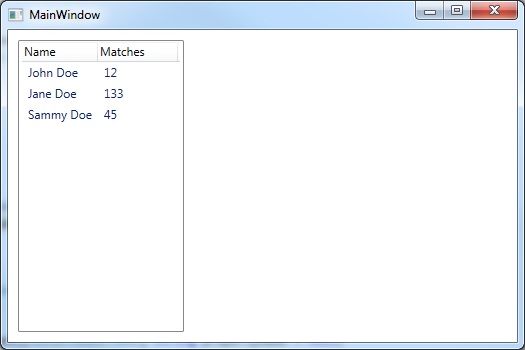
With ‘NameColumnVisible’ property set to boolean true:
With ‘NameColumnVisible’ property set to boolean false. Specified ‘Name’ column is no longer visible as shown: