Simple example
Taken from chocolatey.org documentation that shows you how to create a basic package to install Notepad++.
Open a command prompt and navigate to a preferred location and enter ‘choco new notepadplusplus’ to create the package files etc:
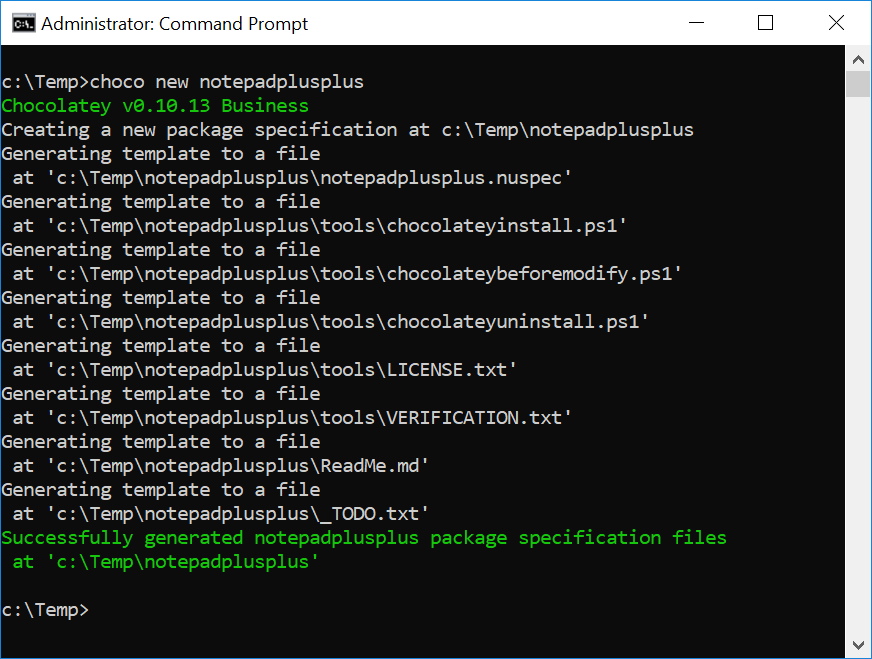
This will create the basic structure as shown:
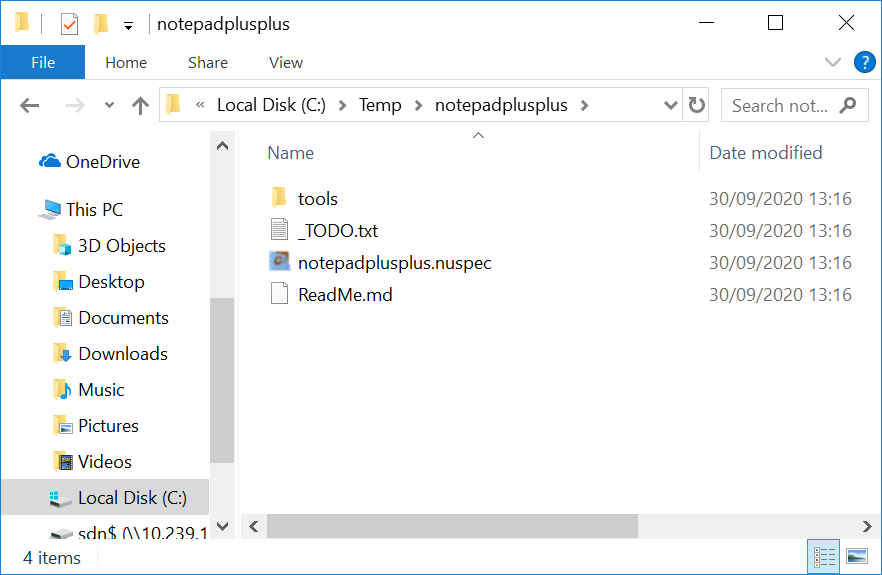
notepadplusplus.nuspec
Edit the notepadplusplus.nuspec file as follows (modify the version number according to what Notepad++ version yuo are installing)
<?xml version="1.0" encoding="utf-8"?>
<package xmlns="http://schemas.microsoft.com/packaging/2015/06/nuspec.xsd">
  <metadata>
    <id>notepadplusplus</id>
    <title>Notepad++ (Install)</title>
    <version>7.0</version>
    <authors>Don Ho</authors>
    <owners>my company</owners> <!-- also known as package mantainers -->
    <description>Notepad++ is a free (as in "free speech" and also as in "free beer") source code editor and Notepad replacement that supports several languages.</description>
 </metadata>
<files>
  <file src="tools\**" target="tools" />
</files>
</package>
chocolateyInstall.ps1
Edit the chocolateyInstall.ps1 file as follows (again, tailor the notepad++ file name according to the version you have downloaded):
$ErrorActionPreference = 'Stop';

$packageName= 'notepadplusplus'
$toolsDir   = "$(Split-Path -parent $MyInvocation.MyCommand.Definition)"
$fileLocation = Join-Path $toolsDir 'npp.7.Installer.x64.exe'

$packageArgs = @{
  packageName   = $packageName
  fileType      = 'exe'
  file         = $fileLocation

  silentArgs    = "/S"
  validExitCodes= @(0)
To build the choco package, navigate to the notepadplusplus folder and enter ‘choco pack’:
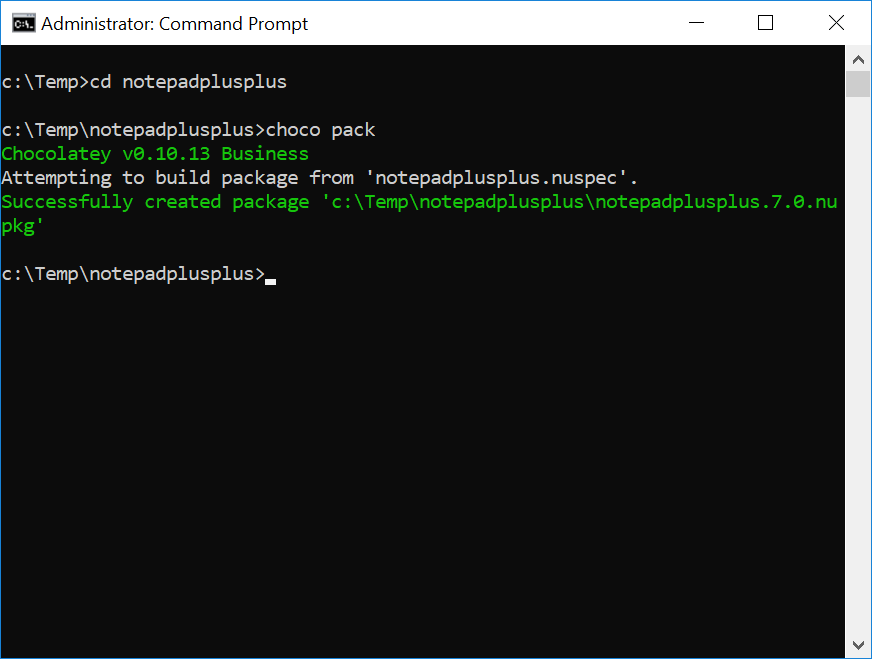
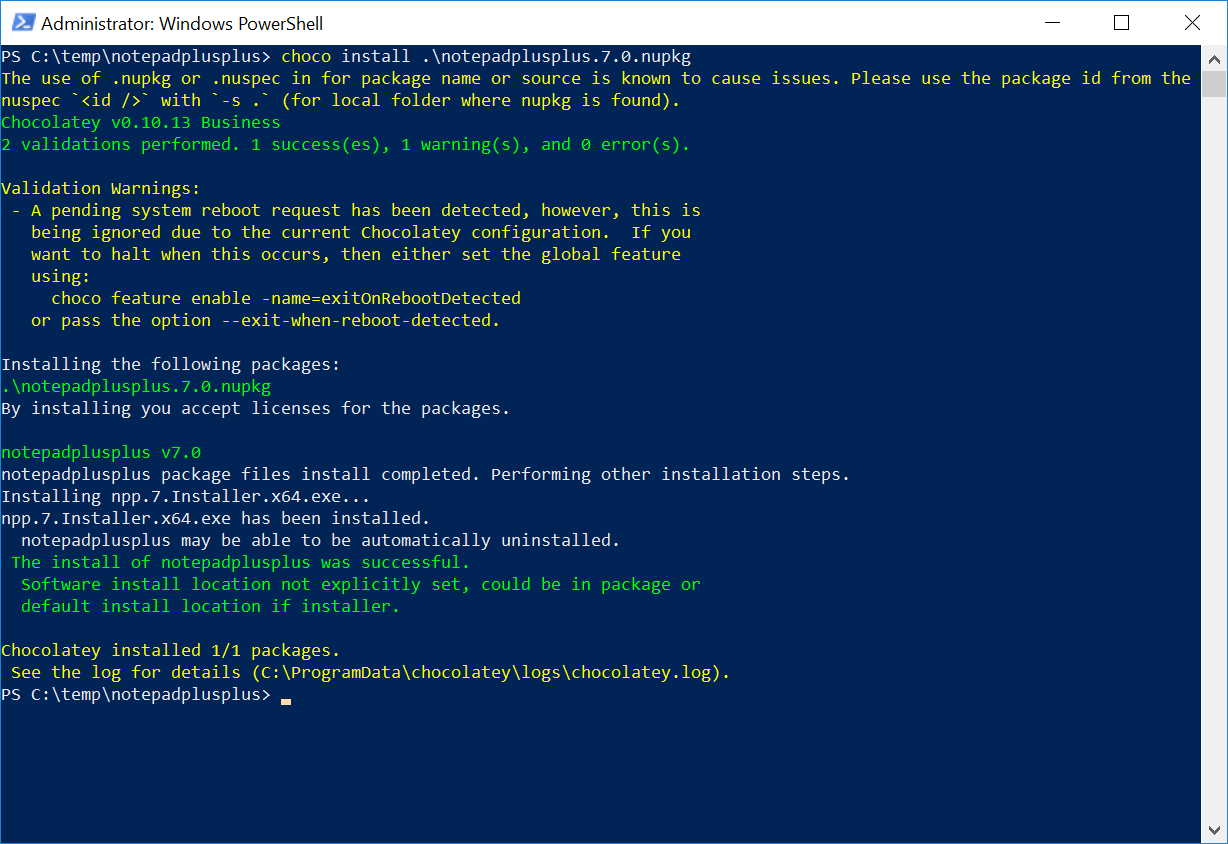
You should then be able to install your choco package using PowerShell:
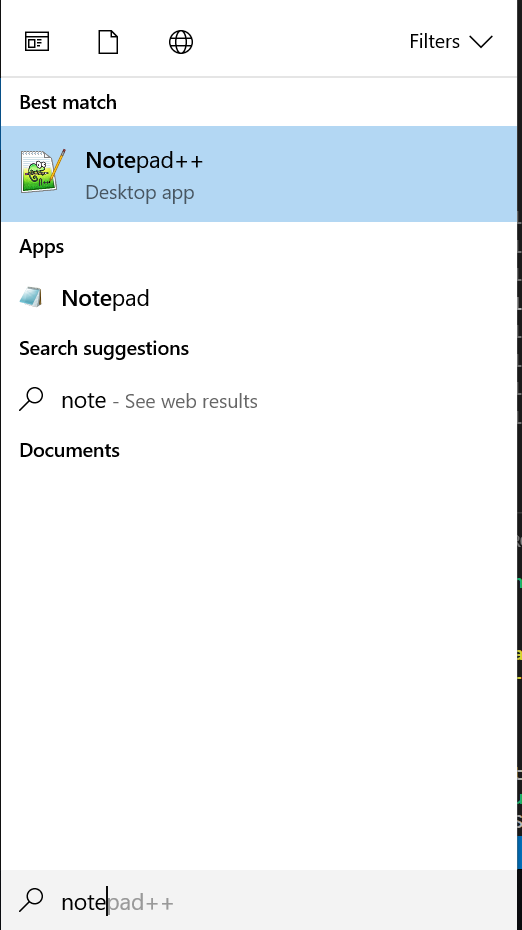
Verify that Notepad++ appears in your startup:
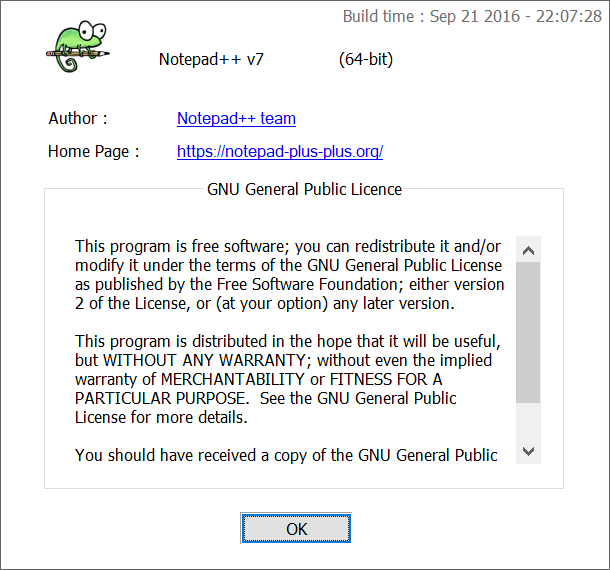
… and is the correct version installed via Help > About Notepad++: