Suppose you wish to implement a silent installation of audio and video codecs for windows. It may be that you wish to execute this as a pre-requisite for a main application you are installing, while avoiding dialog windows or command prompts from appearing while it is doing this. Hence the use of so-called ‘silent’ or ‘unattended’ installations. This post shows you how to create a silent installation of K-Lite audio/video codecs.
Step 1: Download and install K-Lite codec installer
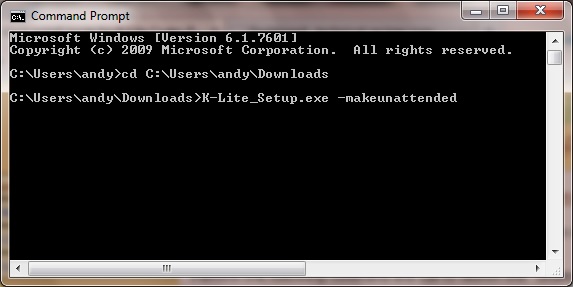
Obtain the K-Lite codec installation software from this link, and double click the executable to perform a normal ‘attended’ installation.
Step 2: Run the unattended wizard
For the purpose of this demonstration I simply perform a ‘vanilla’ installation, pressing ‘Next’ in each step of the setup Wizard, as shown in the following screenshots.
Feel free to tweak the unattended installation to suit your own requirements:
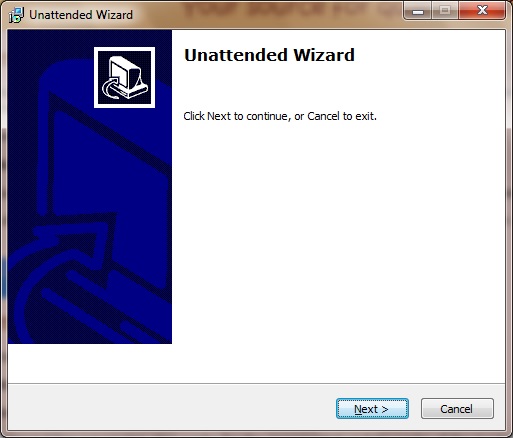
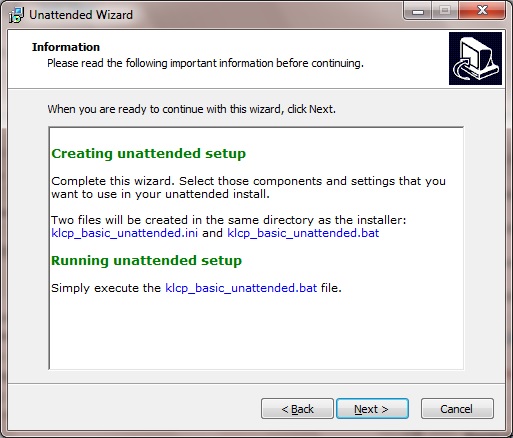
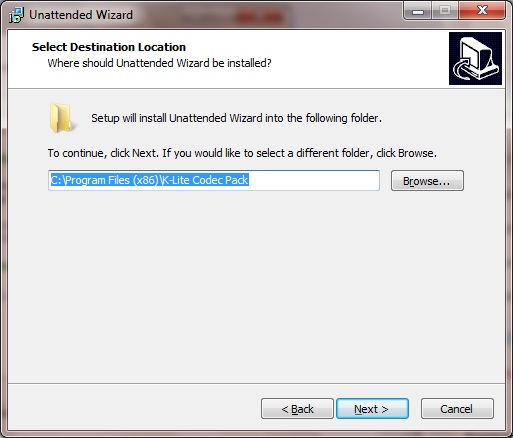
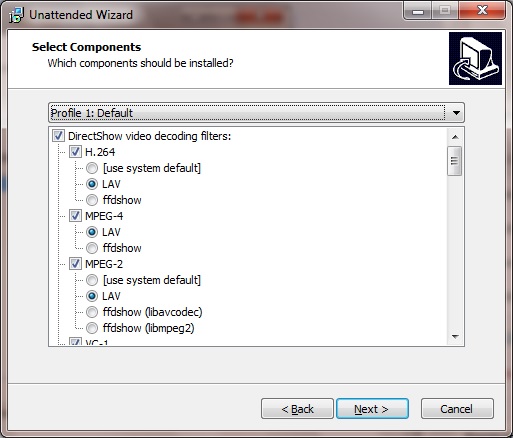
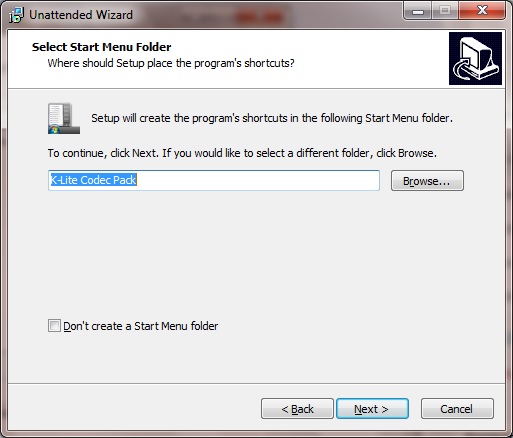
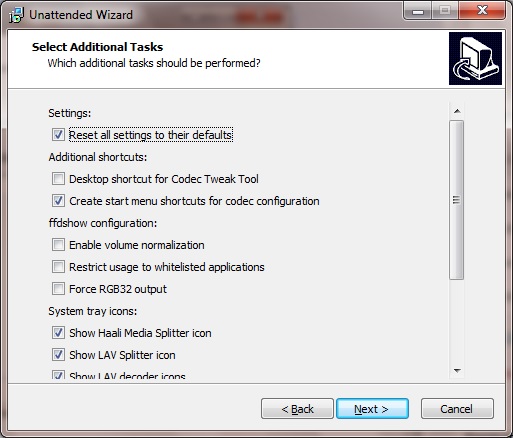
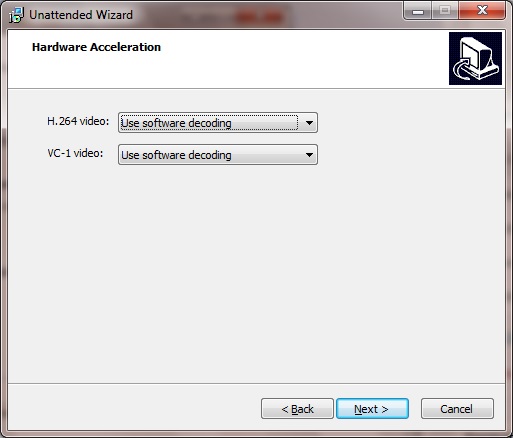
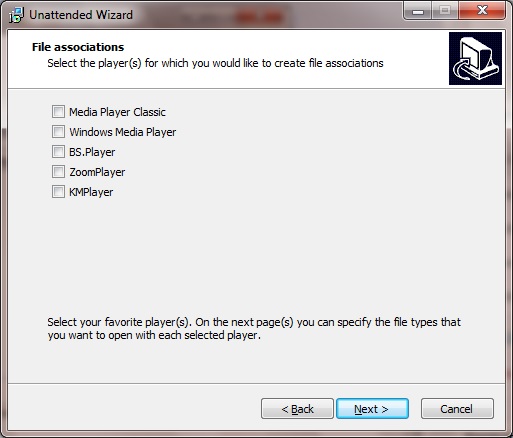
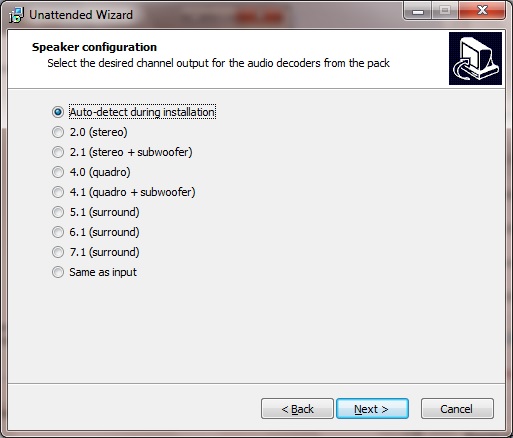
And click ‘Create’:
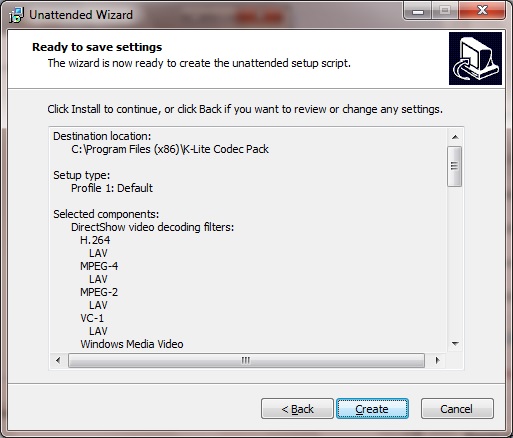
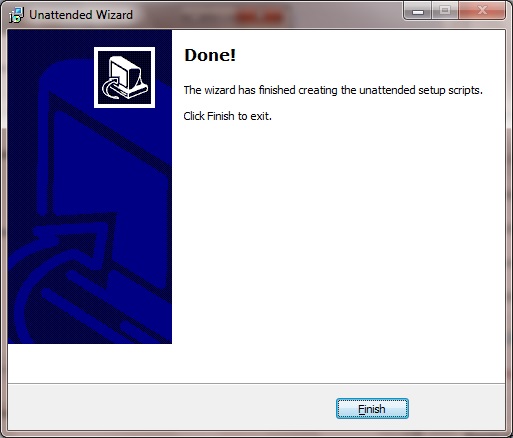
Step 3: Run the silent installation using the batch file created
Observe that in your K-Lite program directory, you now have the batch file and configuration settings needed for an unattended install, which were not present before. For example:
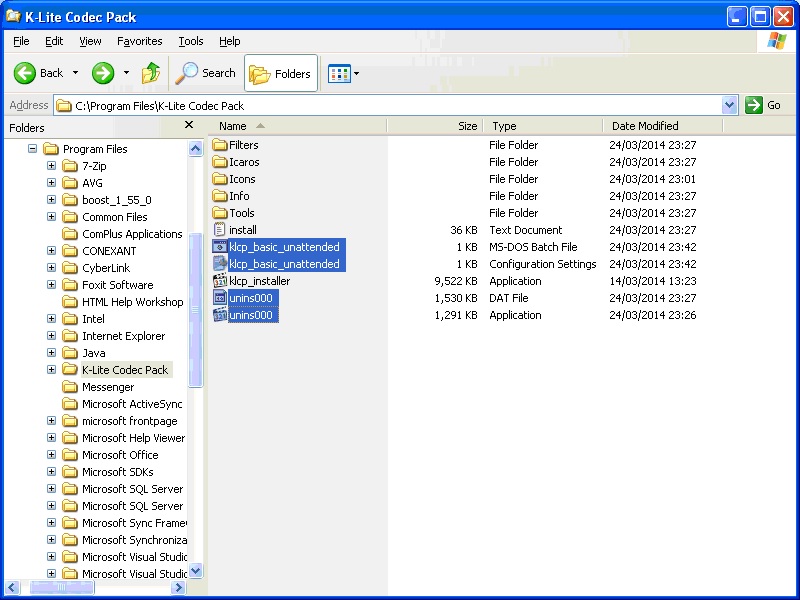
This includes the *.bat batch file containing the command line instructions needed to do a silent, unattended install via the k-lite executable and the .ini configuration file. Uninstall programs are installed as well. Something like this:
@echo Installing: K-Lite Codec Pack

@"K-Lite_Codec_Pack_910_Basic.exe" /verysilent /norestart /LoadInf=".\klcp_basic_unattended.ini"

@echo Done!
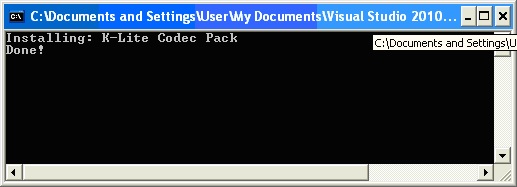
To verify that this batch file created actually works, experiment by first using Control Panel to remove your existing K-Lite installation, and then run the batch file that was created. Run this batch file using the command prompt:
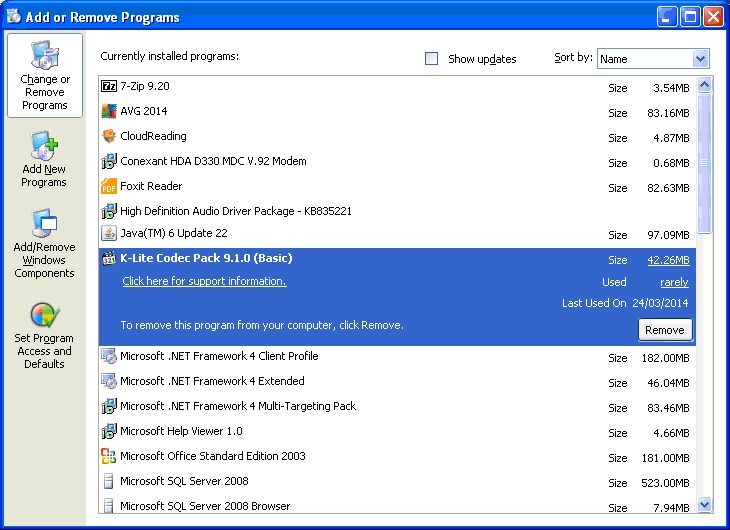
Verify that K-Lite is re-installed in Control Panel. For example:
Running the silent install of K-Lite in C++
Running the silent install in C++ is also straightforward and can be accomplished via calls to the CreateProcess method. Just a few of the argument parameters passed to CreateProcess need tweaking. lpApplicationName used to set the location of the batch file or other executable we are running. Obviously the K-Lite executable and the .ini file also need to in the same location.
In our example it is the klcp_basic_unattended.bat file created by the K-Lite MakeUnattended process. Given that this batch file contains everything we need to run the K-Lite application – the second parameter, lpCommandLine, normally used to set command line arguments, is set to NULL.
Set the dwCreationFlags to CREATE_NO_WINDOW in order to to suppress the command prompt; otherwise use 0 to display it.
Full code listing as follows:
#include <windows.h>
#include <string>

// Silent un-installation of K-Lite codecs
int main()
{
	std::string batchFile = "klcp_basic_unattended.bat";

	// 1. The CreateProcess way
	PROCESS_INFORMATION pif;
	STARTUPINFO si;

	ZeroMemory( &si,sizeof( si ) );
	si.cb = sizeof( si );

	BOOL bRet = CreateProcess(
					batchFile.c_str(),			// Path to batch uninstaller executable
					NULL,						// Command parameters string - not needed
					NULL,						// Process handle not inherited
					NULL,						// Thread handle not inherited
					FALSE,						// No inheritance of handles
					CREATE_NO_WINDOW,	        // Suppress console window
					NULL,						// Same environment block as this prog
					NULL,				        // Current directory - no separate path
					&si,						// Pointer to STARTUPINFO
					&pif );						// Pointer to PROCESS_INFORMATION

	if( bRet == FALSE )
	{
		MessageBox( HWND_DESKTOP, "Unable to start program", "", MB_OK );
		return 1;
	}

	CloseHandle( pif.hProcess );   //Close handle to process
	CloseHandle( pif.hThread );    //Close handle to thread

	return 0;
}
Download the full Visual Studio 2010 package, containing the K-lite executable, batch file etc in zip format, or get it via the Downloads page.
Comments, feedback and suggestions welcome.