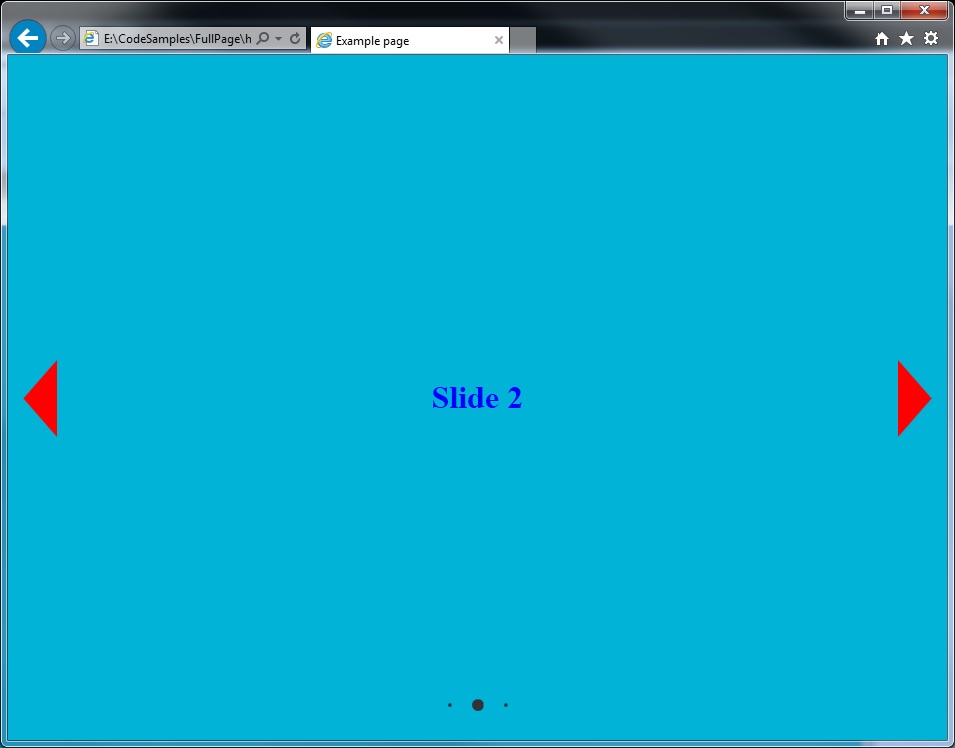
Some instructions on how to use fullpage.js to scroll between sections in your web page.
I am not a web developer, so this post will contain a minimum of javascripting, css styling and so on. I just wanted to see how fullpage.js can be incorporated so that individual web pages can be scrolled horizontally in an animated way.
Step 1: Download fullpage.js
Fullpage.js javascript can be downloaded from here:
https://alvarotrigo.com/fullPage/
This will download a file called fullPage.js-master.zip.
Once the zip file has been downloaded, extract it somewhere.
Step 2: Create folder structures for your web page(s)
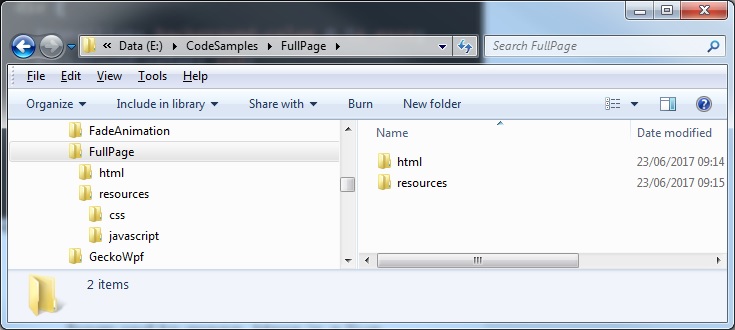
I have created a folder called ‘FullPage’ containing the subfolders ‘html’ and ‘resources’ in which the HTML file(s) and style sheets/javascripts will be contained respectively:
Step 3: Install the necessary styling and resources.
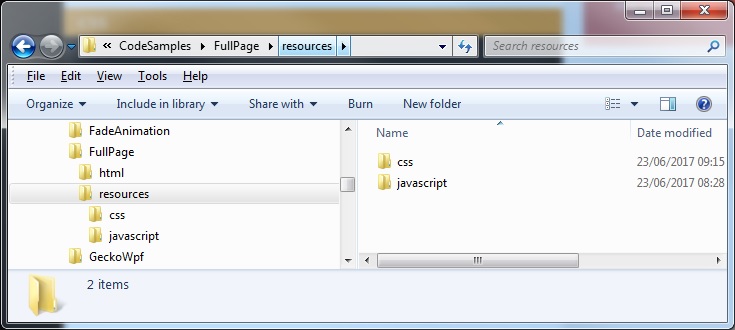
In the ‘resources’ folder create a further two subfolders ‘css’ and ‘javascript’ in which to contain our styling and scripting files:
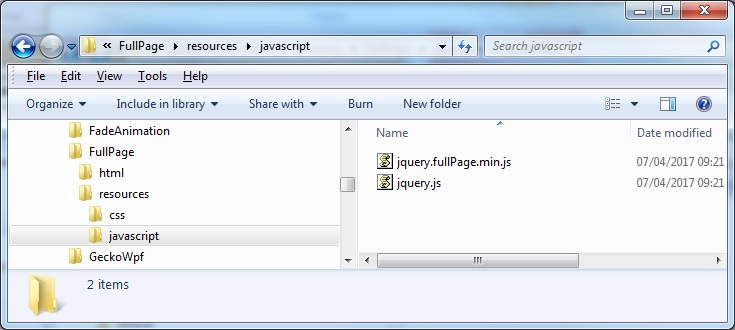
In the fullPage.js-master.zip that was extracted, obtain the files jquery.fullPage.min.js and jqujquery.js files and copy them into the ‘javascript’ folder:
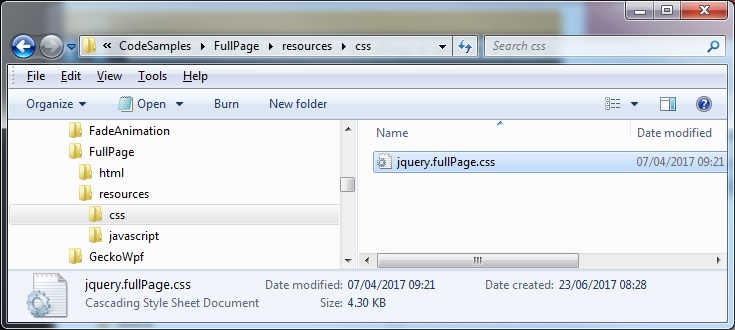
Also obtain the ‘jquery.fullPage.css’ file and copy it into the ‘css’ folder:
Step 4: Create an example web page.
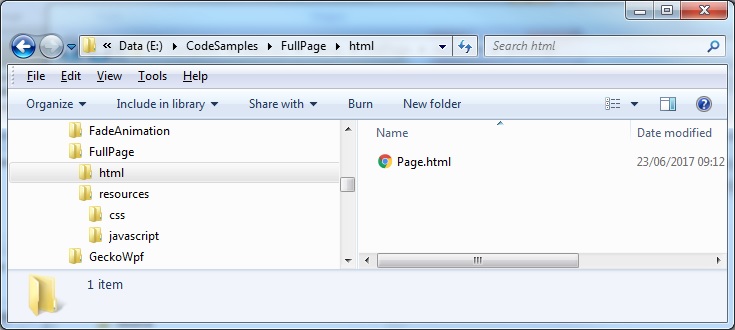
In the ‘html’ folder create a new html file ‘Page.html’
Edit the html page. Some things to note: styling applied to the scrolling arrow, the main html body which consists of sub-sections containing the individual slides we wish to scroll through, and the references to the fullpage javascripts that we downloaded and copied:
Page.html
<!DOCTYPE html>
<html>
	<head>
	<title>Example page</title>
	<meta charset="utf-8">
	<link href="../resources/css/jquery.fullPage.css" rel="stylesheet prefetch"></link>

    <style>
         h1{
			display: block;
			font-size: 2em;
			margin-top: 0.67em;
			margin-bottom: 0.67em;
			margin-left: 0;
			margin-right: 0;
			font-weight: bold;
			font-face: verdana;
			color: blue;
		 }

		 .fp-controlArrow {
			 position: absolute;
			 z-index: 4;
			 top: 50%;
			 cursor: pointer;
			 width: 0;
			 height: 0;
			 border-style: solid;
			 margin-top: -38px;
		 }
		 .fp-controlArrow.fp-prev {
			 left: 15px;
			 width: 0;
			 border-width: 38.5px 34px 38.5px 0;
			 border-color: transparent red transparent transparent;
		 }
		 .fp-controlArrow.fp-next {
			 right: 15px;
			 border-width: 38.5px 0 38.5px 34px;
			 border-color: transparent transparent transparent red;
		 }
	</style>
	</head>

	<body class="lang-en tab-pips">
		<article id="main">
		<div class="section">
			<div id="slide1" class="slide-wrapper current">
				<h1 class="sansserif" align="center">Slide 1</h1>
			</div>
			<div id="slide2" class="slide-wrapper">
				<h1 align="center">Slide 2</h2>
			</div>
			<div id="slide2" class="slide-wrapper">
				<h1 align="center">Slide 3</h2>
			</div>
		</article>

		<script src='../resources/javascript/jquery.js'></script>
		<script src='../resources/javascript/jquery.fullPage.min.js'></script>
		<script>
		   // variables
		   var $header_top = $('.header-top');
		   var $nav = $('nav');

		   // fullpage customization
			 $('#main').fullpage({
		   menu: '#menu',
			  slideSelector: '.slide-wrapper',
				 sectionsColor: ['#00b3d7', '#4BBFC3', '#7BAABE', 'whitesmoke', '#ccddff', '#ccc'],
				 continuousHorizontal: true,
				 continuousHorizontalKey: 'YWx2YXJvdHJpZ28uY29tX00zVVkyOXVkR2x1ZFc5MWMwaHZjbWw2YjI1MFlXdz12Nk0=',
			  slidesNavigation: true,
				 afterSlideLoad: function(anchorLink, index, slideAnchor, slideIndex){
			  console.log("slideLoad--" + "anchorLink: " + anchorLink + " index: " + index + " slideAnchor: " + slideAnchor + " slideIndex: " + slideIndex);
			  },
			  onSlideLeave: function(anchorLink, index, slideIndex, direction){
				 console.log("----------------");
				 console.log("onSlideLeave--" + "anchorLink: " + anchorLink + " index: " + index + " slideIndex: " + slideIndex + " direction: " + direction);
			  }
		   });
		</script>
	</body>
</html>
Step 5: Try it!
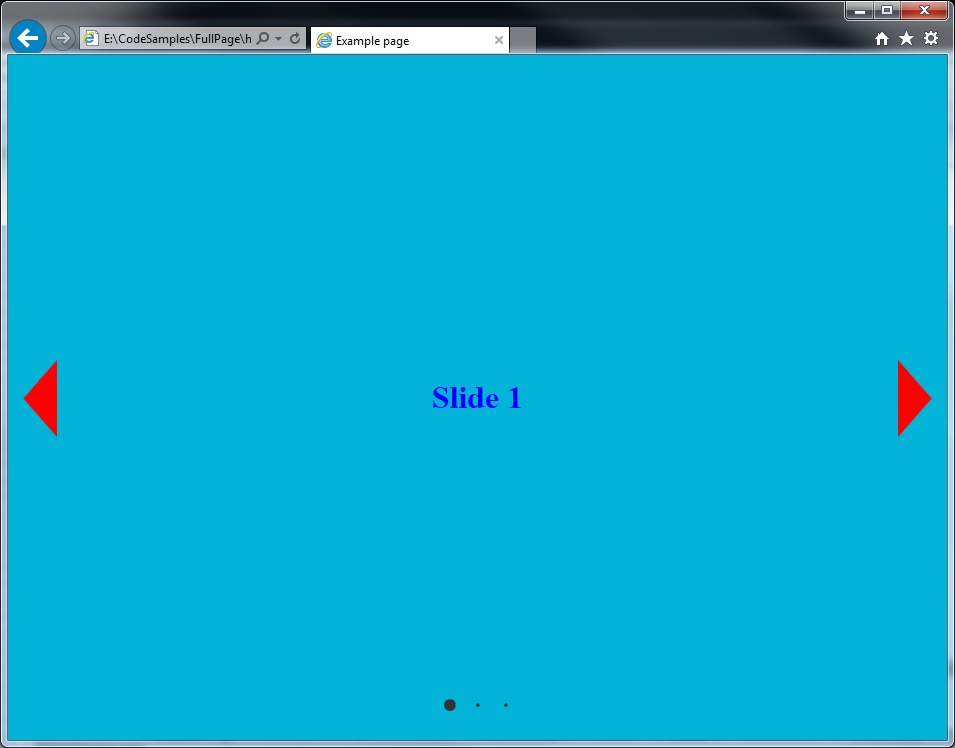
I then view the Page.html in Internet Explorer. Notice that the styling/scripting provides us with the left/right control arrows that provide the scrolling animation when navigation through each slide and pips to achieve the same scrolling action:
And on to the next slide: