Getting started with using OpenGL / freeglut in a Microsoft Visual Studio environment for 32 bit versions.
1. Obtain freeglut
Go to the freeglut site to obtain the MSVC package:
http://www.transmissionzero.co.uk/software/freeglut-devel/
At the time of writing this demonstration we obtain version 3.0.0 in zip file format: http://files.transmissionzero.co.uk/software/development/GLUT/freeglut-MSVC.zip
2. Obtain glew
http://sourceforge.net/projects/glew/files/glew/
At the time of writing this demonstration we obtain version 1.13.10 in zip file format: http://sourceforge.net/projects/glew/files/latest/download?source=files
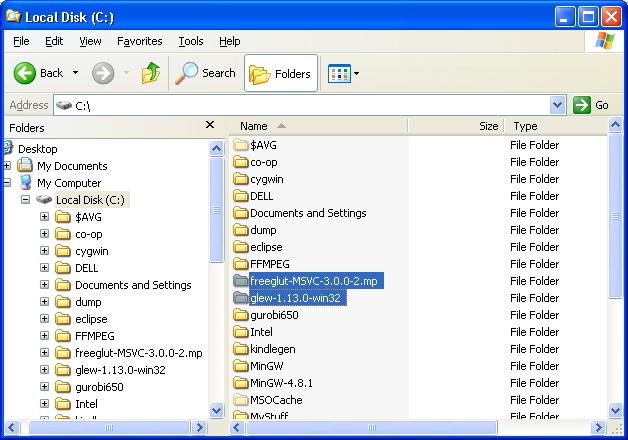
3. Place freeglut and glew in the location of your choice:
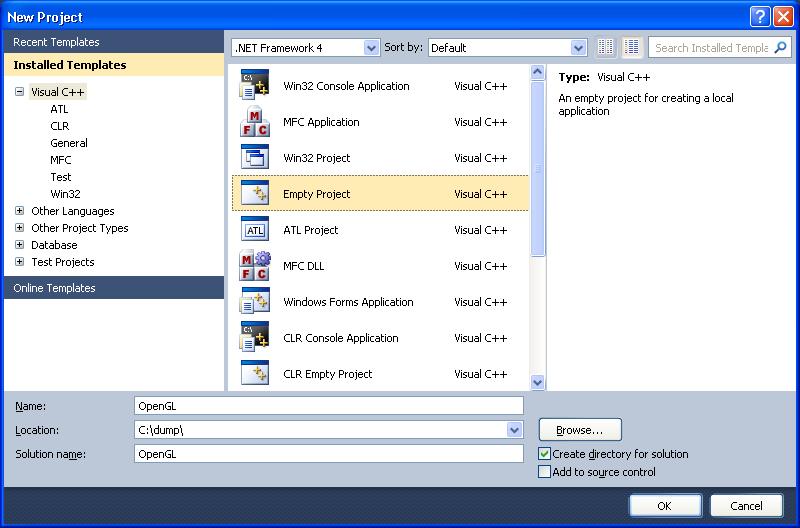
4. Create a new empty project in Visual Studio
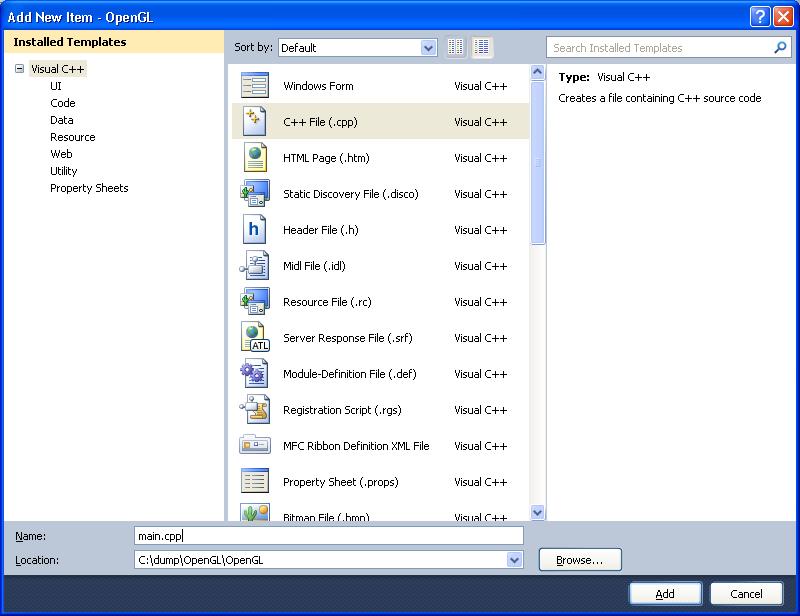
Add your main.cpp source code file. Don’t have to put anything in it for the time being:
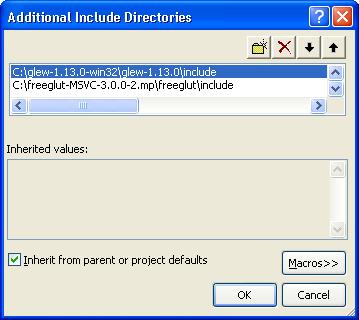
5. Set the Additional Include Directories
Select project properties > C/C++ > General tab > Additional Include Directories.
Do this for the freeglut and glew packages:
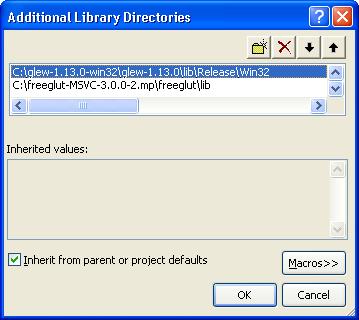
6. Set the Additional Library Directories
Select project properties > Linker > General > Additional Library Directories.
Again, do this for the freeglut and glew packages:
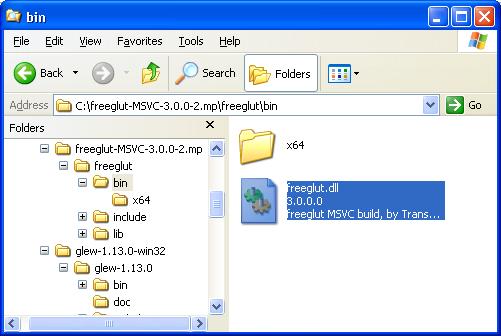
7. Place the freeglut dll in your project location.
freeglut.dll is found in the \bin folder:
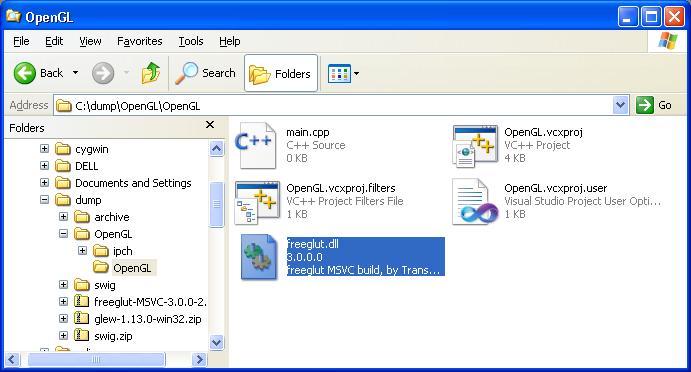
Take a copy of the dll and paste it into your project location (where main.cpp is located):
8. Try with a simple example
#include <GL\glew.h>
#include <GL\freeglut.h>

void Display()
{
	glClear(GL_COLOR_BUFFER_BIT);
    glBegin(GL_POLYGON);
    glVertex2f(0.0, 0.0);
    glVertex2f(0.5, 0.0);
    glVertex2f(0.5, 0.5);
    glVertex2f(0.0, 0.5);
    glEnd();
    glFlush();
}

int main(int argc, char** argv)
{
    glutInit(&argc, argv);
    glutInitDisplayMode(GLUT_SINGLE);
    glutInitWindowSize(300, 300);                    // window size
    glutInitWindowPosition(500, 500);                // distance from the top-left screen
    glutCreateWindow("BadproG - Hello world :D");    // message displayed on top bar window
    glutDisplayFunc(Display);
    glutMainLoop();
    return 0;
}
Build and run the project to give you the following result:
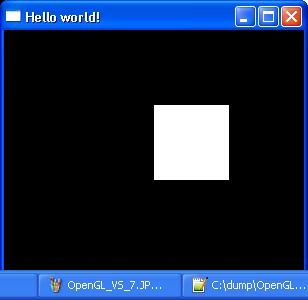
Try it out and see. Feel free to contact me if you have any problems and or want to give feedback.
For setting up OpenGL in Linux environments see this related post:
https://www.technical-recipes.com/2013/getting-started-with-opengl-in-linux/