A quick demonstration on how to control access to files in real-time.
As described in the Microsoft documentation, the control access to a file can be added or removed by obtaining the FileSecurity object from that file, then modified, and then applied back to the file.
In this example I choose to change the file access properties of a simple icon file “icon.ico”:

So that before modifying the properties it can be opened straightforwardly as follows:

To demonstrate how we can alter the access properties in real-time, create a C# console application in Visual Studio and add the following code. Note the use of WindowsIdentity.GetCurrent() api used to obtain the necessary username/domain details of the current Windows user:
using System;
using System.IO;
using System.Security.AccessControl;
using System.Security.Principal;

namespace FileControlAccess
{
   class Program
   {
      static void Main(string[] args)
      {
         try
         {
            const string fileName = "c:\\data\\icon.ico";
            var domain = WindowsIdentity.GetCurrent().Name;

            Console.WriteLine("Adding access control entry for " + fileName);

            // Add the access control entry to the file.
            AddFileSecurity(fileName, domain, FileSystemRights.ReadData, AccessControlType.Deny);
            Console.WriteLine("Removing access control entry from " + fileName);

            // Remove the access control entry from the file.
            RemoveFileSecurity(fileName, domain, FileSystemRights.ReadData, AccessControlType.Deny);
            Console.WriteLine("Done.");
         }
         catch (Exception e)
         {
            Console.WriteLine(e);
         }
      }

      // Adds an ACL entry on the specified file for the specified account.
      public static void AddFileSecurity(string fileName, string account,
          FileSystemRights rights, AccessControlType controlType)
      {
         // Get a FileSecurity object that represents the current security settings.
         FileSecurity fSecurity = File.GetAccessControl(fileName);

         // Add the FileSystemAccessRule to the security settings.
         fSecurity.AddAccessRule(new FileSystemAccessRule(account,
             rights, controlType));
         File.SetAccessControl(fileName, fSecurity);
      }

      // Removes an ACL entry on the specified file for the specified account.
      public static void RemoveFileSecurity(string fileName, string account,
          FileSystemRights rights, AccessControlType controlType)
      {
         // Get a FileSecurity object that represents the current security settings.
         FileSecurity fSecurity = File.GetAccessControl(fileName);

         // Remove the FileSystemAccessRule from the security settings.
         fSecurity.RemoveAccessRule(new FileSystemAccessRule(account,
             rights, controlType));
         File.SetAccessControl(fileName, fSecurity);
      }
   }
}
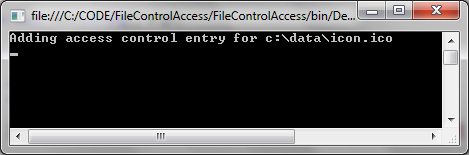
On stepping through the code, we first add an access control entry to DENY the users ‘Read’ access to the ‘icon.ico’ file:
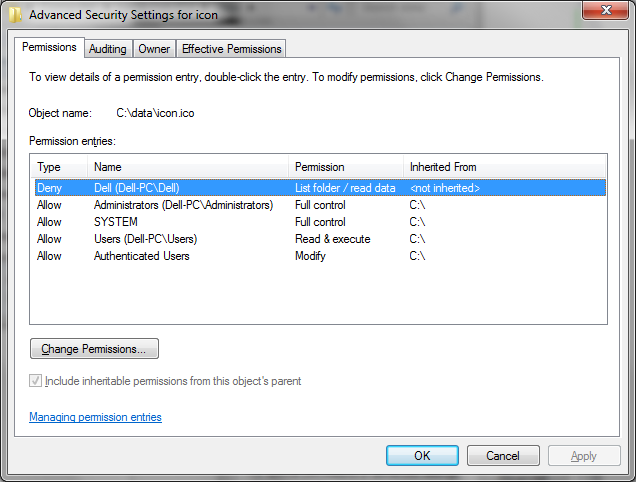
On inspecting the file’s Security properties we observe that this Deny access property has indeed been added:
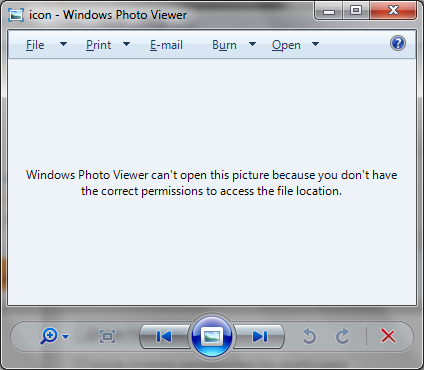
And when we try to open the file we observe that we can’t:
We then step further through the code and remove the access control property we just added:
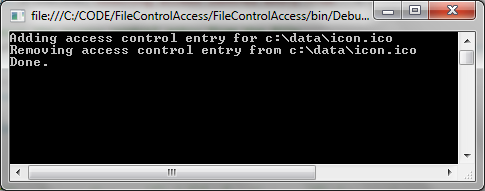
This is also observed in the file’s security properties as shown:
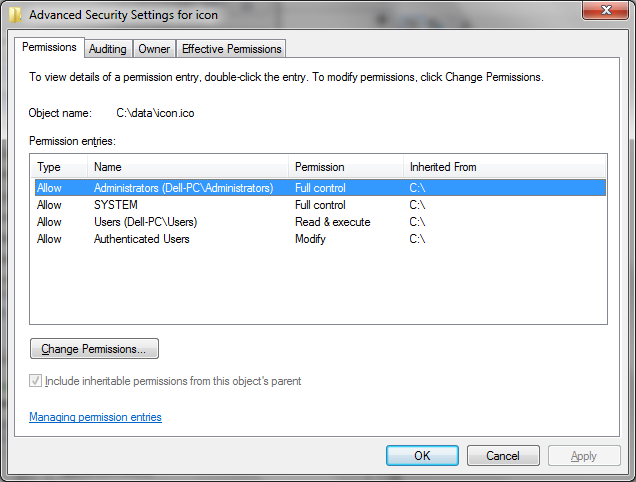
So that we can now open the file unopposed as before: