These instructions, also available on the Microsoft site, show how to create from scratch a Visual Studio 2010 project that can utilize dll routines created elsewhere, by way of referencing. It basically describes the same thing, as in how to link DLL files but with additional screenshots to make it more intuitive.
Step 1: Create a new dll project
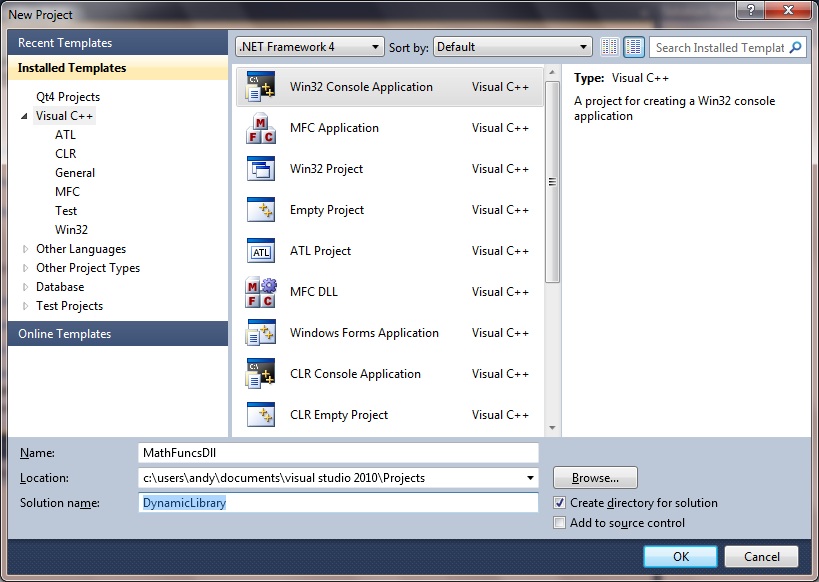
• From the File menu, select New and then Project….
• From the Project types pane, under Visual C++, select Win32.
• From the Templates pane, select Win32 Console Application.
• In the Name field choose a name for the project, such as MathFuncsDll
• In the Solution name field, choose a name for the solution, such as DynamicLibrary.
• Then Press OK to start the Win32 application wizard.
• From the Overview page of the Win32 Application Wizard dialog, press Next.
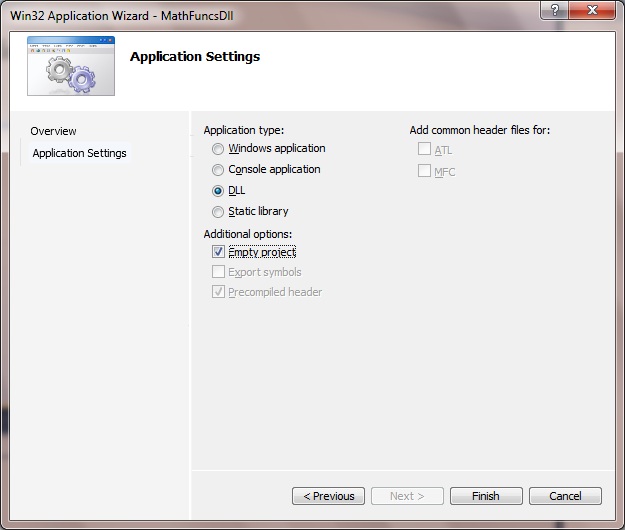
• From the Application Settings page of the Win32 Application Wizard, under Application type, select DLL if it is available or Console application if DLL is not available. Some versions of Visual Studio do not support creating a DLL project using wizards. You can change this later to make your project compile into a DLL.
• From the Application Settings page of the Win32 Application Wizard, under Additional options, select Empty project.
• Press Finish to create the project.
Step 2: Add a class(es) to the dynamic link library
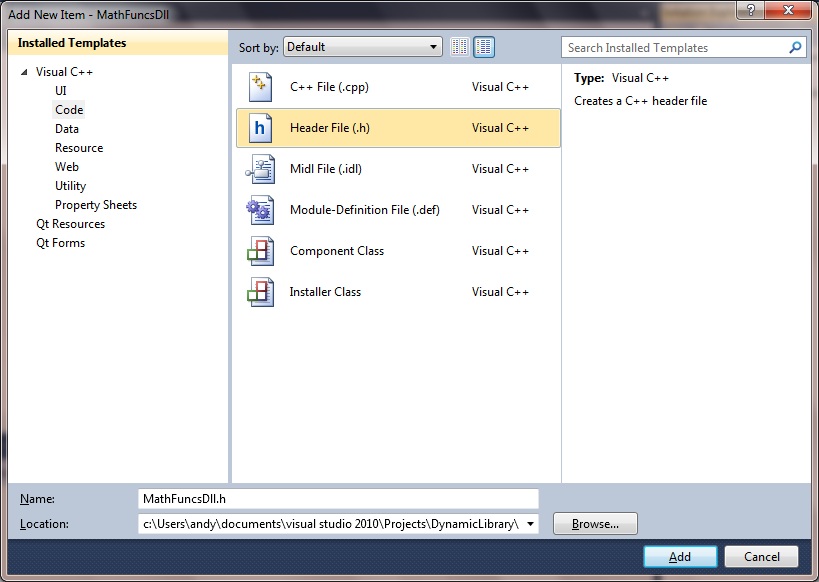
• From the Project menu, select Add New Item….
• From the Categories pane, under Visual C++, select Code.
• From the Templates pane, select Header File (.h). Choose a name for the header file, such as MathFuncsDll.h, and press Add. A blank file will be displayed.
• Paste in the example code:
// MathFuncsDll.h

namespace MathFuncs
{
    class MyMathFuncs
    {
    public:
        // Returns a + b
        static __declspec(dllexport) double Add(double a, double b);

        // Returns a - b
        static __declspec(dllexport) double Subtract(double a, double b);

        // Returns a * b
        static __declspec(dllexport) double Multiply(double a, double b);

        // Returns a / b
        // Throws DivideByZeroException if b is 0
        static __declspec(dllexport) double Divide(double a, double b);
    };
}
Note the __declspec(dllexport) modifier in the method declarations above. These modifiers enable the method to be exported by the DLL so they can be used by other applications.
Step 3: Create the source code for the class(es)
• From the Project menu, select Add New Item…. The Add New Item dialog will be displayed.
• From the Categories pane, under Visual C++, select Code. From the Templates pane, select C++ File (.cpp). Choose a name for the source file, such as MathFuncsDll.cpp, and press Add. A blank file will be displayed.
• Use this example code:
// MathFuncsDll.cpp
// compile with: /EHsc /LD

#include "MathFuncsDll.h"

#include <stdexcept>

using namespace std;

namespace MathFuncs
{
    double MyMathFuncs::Add(double a, double b)
    {
        return a + b;
    }

    double MyMathFuncs::Subtract(double a, double b)
    {
        return a - b;
    }

    double MyMathFuncs::Multiply(double a, double b)
    {
        return a * b;
    }

    double MyMathFuncs::Divide(double a, double b)
    {
        if (b == 0)
        {
            throw new invalid_argument("b cannot be zero!");
        }

        return a / b;
    }
}
Step 4: Build the project into a DLL
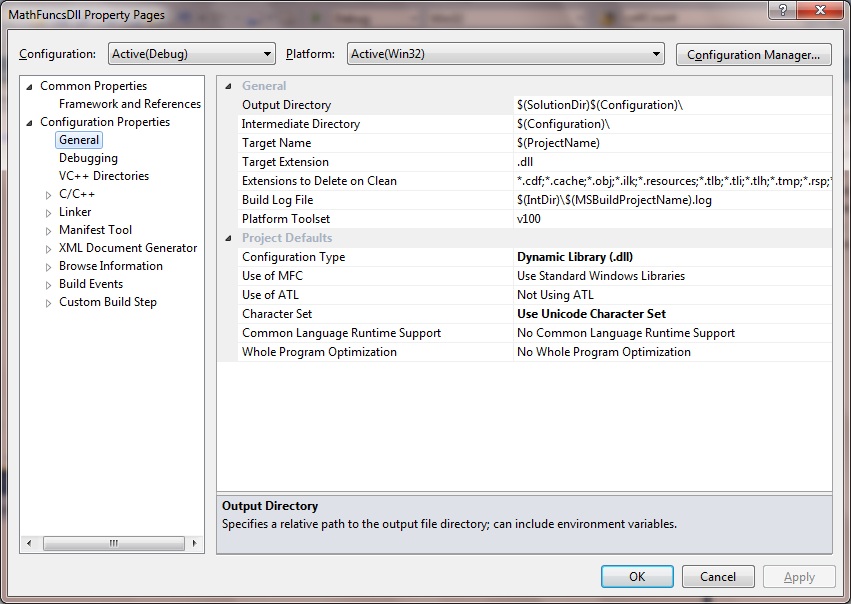
• From the Project menu, select MathFuncsDll Properties….
• From the left pane, under Configuration Properties, select General.
• From the right pane, change the Configuration Type to Dynamic Library (.dll).
• Press OK to save the changes.
Step 5: Compile the DLL
• Select Build Solution from the Build menu. This creates a DLL that can be used by other programs
Step 6: Create a separate application that references the DLL
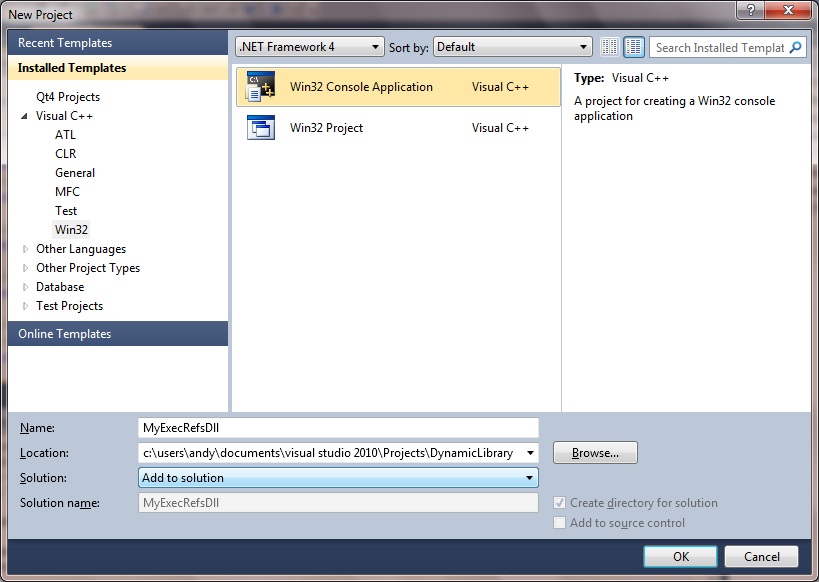
• File menu, select New and then Project….
• From the Project types pane, under Visual C++, select Win32.
• From the Templates pane, select Win32 Console Application.
• Choose a name for the project, such as MyExecRefsDll, and enter it in the Name field. Next to Solution, select Add to Solution from the drop down list. This will add the new project to the same solution as the dynamic link library.
• Press OK to start the Win32 Application Wizard.
• From the Overview page of the Win32 Application Wizard dialog, press Next.
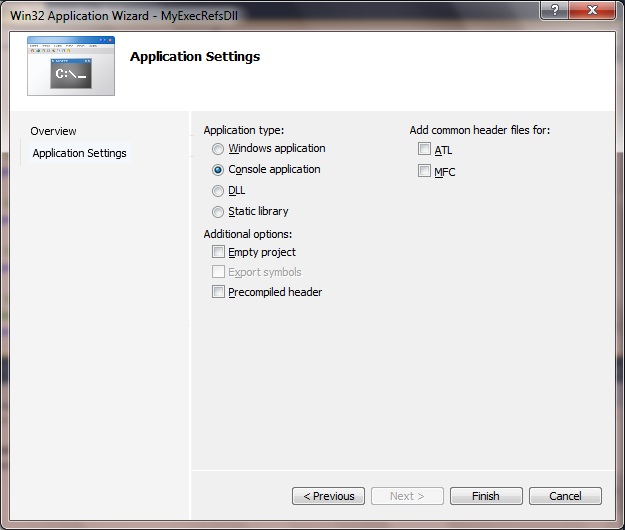
• From the Application Settings page of the Win32 Application Wizard, under Application type, select Console application.
• From the Application Settings page of the Win32 Application Wizard, under Additional options, deselect Precompiled header.
• Press Finish to create the project:
Step 7: Start using the DLL functionality
After creating the new Console Application, an empty program is created for you, named the same as the name you chose for the project above. In this example, MyExecRefsDll.cpp. To use the routines you created in the DLL, you reference it:
• Select References… from the Project menu.
• From the Property Pages dialog, expand the Common Properties node and select References.
• Select the Add New Reference… button:
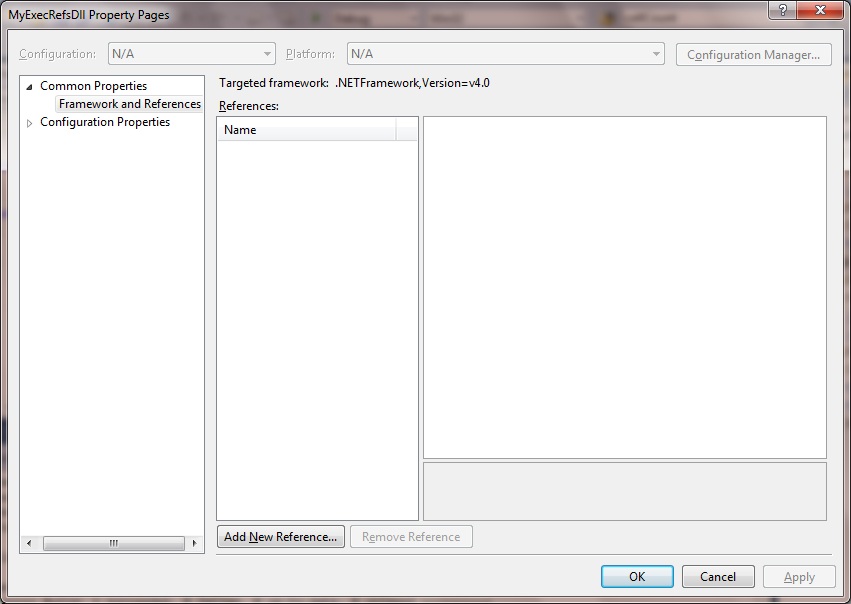
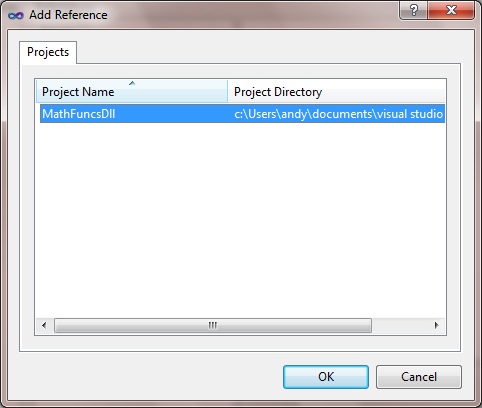
The Add Reference dialog will get displayed, listing all the libraries that you can reference.
• From the Projects tab, select MathFuncsDll.
• Then select OK:
Step 8: Reference the DLL header files
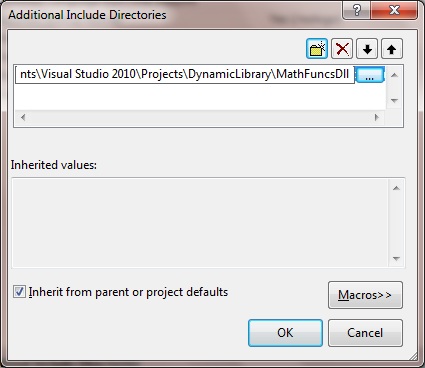
• From the Property Pages dialog, expand the Configuration Properties node, then the C/C++ node, and select General.
• Next to Additional Include Directories, type in the path to the location of the MathFuncsDll.h header file:
• (For example C:\Users\andy\Documents\Visual Studio 2010\Projects\DynamicLibrary\MathFuncsDll – you will need to locate your own)
Step 9: Tell the system where to locate the DLLs at runtime
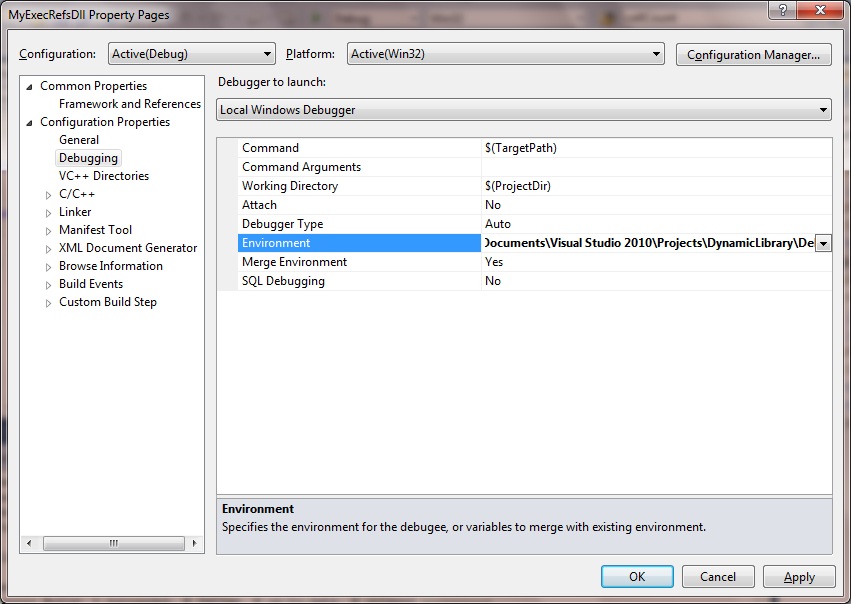
• From the Property Pages dialog, expand the Configuration Properties node and select Debugging.
• Next to Environment, type in the following: PATH=, where is replaced with the actual location of MathFuncsDll.dll.
• (where ‘ path to MathFuncsDll.dll file’ will look something like C:\Users\andy\Documents\Visual Studio 2010\Projects\DynamicLibrary\Debug . Again, you will need to locate where yours is located.)
• Press OK to save all the changes made.
Step 10: Start using the actual DLL components
For example, replace the contents of MyExecRefsDll.cpp with the following code:
// MyExecRefsDll.cpp
// compile with: /EHsc /link MathFuncsDll.lib

#include <iostream>

#include "MathFuncsDll.h"

using namespace std;

int main()
{
    double a = 7.4;
    int b = 99;

    cout << "a + b = " <<
        MathFuncs::MyMathFuncs::Add(a, b) << endl;
    cout << "a - b = " <<
        MathFuncs::MyMathFuncs::Subtract(a, b) << endl;
    cout << "a * b = " <<
        MathFuncs::MyMathFuncs::Multiply(a, b) << endl;
    cout << "a / b = " <<
        MathFuncs::MyMathFuncs::Divide(a, b) << endl;

    return 0;
}
Right click on your solution, do a complete clean and rebuild and then run.
Comments
19 responses to “How to link DLL files to C++ Projects”
This is the kind of highly valuable teaching that should be available in Visual Studio books and in internet technical sources, but isn’t at all. Thank you for your attention to detail and thorough coverage of this subject.
Book authors skip this important information and leave their readers guessing. And people calling into internet subject forums get a clue and leave the forum without telling the other readers what the solution really was, as though it was entirely about them.
One minor detail about this solution, VS2008 does not provide any reference choices if the DLL is produced in another tool’s project list, such as VS2013. In that case the DLL and the lib file may need to be dumped directly into the project’s build directory or you may need to use pre-compile actions to copy the files from the DLL’ s build directory to the project directory. Admittedly, a bit of a pain.
Hi Robin
Thank you very much for your feedback. I agree 100% with your comments and that is absolutely the purpose of this blog, which is to explain things in intelligible terms and not bamboozle the reader. Thank you for comment about VS 2008, this is all useful info for the blog.
Excellent tutorial,
It saved me a lot of time.
That’s great to know, thanks. Please comment if you have any further questions or suggestions.
Works on Visual Studio 2017
Hi!, Thanks for the tutorial, but I’m having problems with this.
I have a DLL that someone gives me (I didn’t create it) and when I do “add new reference”, the only thing that I get is “No items found” 🙁
Can you please help me out?
I’m working on Microsoft Visual Studio 2013
Thank you
Thanks
Saved my day really….well done man……hats off…exactly what a newbie needs….complete package…keep it up man…
Thanks for the feedback Rajat.
Very nice
Thanks for the simple detailed visual tutorial..
I did the exact steps yet still get IntelliSense: cannot open source file “MathFuncsDll.h” on Visul Studio 2013… What can be doing wrong??
Found the problem,,, I added the dll file instead of its directory.. When I solved this it worked perfectly…
Thanks so much for the great tutorial 🙂
Thanks for the specific feedback Jennifer, all useful to this blog. Andy.
Thank so much! You helped me a lot with this tutorial!
The passages are well explained and is easy to understand. I’m having several problems to link the dll to the main application. This method showed above is the better to use in visual C++. Looked like you was concerned in explain to who have never created any applications using dll. Useful and reliable! If I could press any “like button”, I really would!!
This tutorial works in visual studio 2012 too. There aren’t great differences!!
PS: My english is not so good. I hope you can understand me!
Hi Cesar, I understand you all right. Thanks a lot!
Excellent! Thanks for your clear and useful explanation.
Peter
Hello, this is a really nice and helpful explanation.
Peter
Thank you Peter.
Thanks to take back remember to this approach. I used it to solve string definition between c++ and MFC and precompiled headers in MFC application (stdafx.h).