In this post I demonstrate how the methods of a DocumentViewer class may be invoked via MVVM / WPF in order to modify the way an embedded PowerPoint presentation is displayed.
Step 1: Create a new WPF application
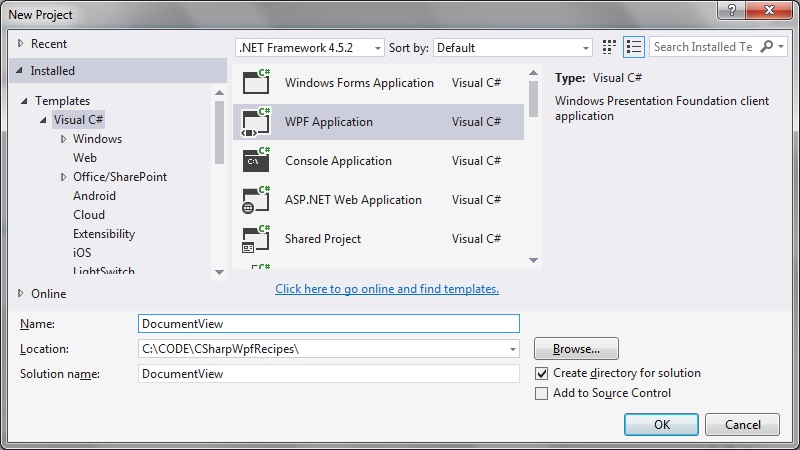
Step 2: Create the Main Window view
Just a simple view to house the DocumentViewer control and a button with which to tell it to launch the PowerPoint presentation.
We will fill in the various command binding a bit later.
<Window x:Class="DocumentView.MainWindow"
        xmlns="http://schemas.microsoft.com/winfx/2006/xaml/presentation"
        xmlns:x="http://schemas.microsoft.com/winfx/2006/xaml"
        xmlns:d="http://schemas.microsoft.com/expression/blend/2008"
        xmlns:mc="http://schemas.openxmlformats.org/markup-compatibility/2006"
        xmlns:local="clr-namespace:DocumentView"
        mc:Ignorable="d"
        WindowState="{Binding WindowState, Mode=TwoWay}"
        Title="MainWindow" Height="350" Width="525">

    <Window.DataContext>
        <local:MainWindowViewModel />
    </Window.DataContext>

    <Grid>
        <Grid.RowDefinitions>
            <RowDefinition Height="*" />
            <RowDefinition Height="50" />
        </Grid.RowDefinitions>

        <DocumentViewer
            Grid.Row="0"
            Document="{Binding FixedFixedDocumentSequence}"
            Name="DocumentViewPowerPoint"
            VerticalAlignment="Top"
            HorizontalAlignment="Left" />

        <Button
            Grid.Row="1"
            Command="{Binding Command}"
            Width="70" Height="30" Content="Press" />
    </Grid>
</Window>
Step 3: Add the event handling classes
EventArgs.cs
using System;

namespace DocumentView
{
   public class EventArgs<T> : EventArgs
   {
      public EventArgs(T value)
      {
         Value = value;
      }

      public T Value { get; private set; }
   }
}
EventRaiser.cs
using System;

namespace DocumentView
{
   public static class EventRaiser
   {
      public static void Raise(this EventHandler handler, object sender)
      {
         if (handler != null)
         {
            handler(sender, EventArgs.Empty);
         }
      }

      public static void Raise<T>(this EventHandler<EventArgs<T>> handler, object sender, T value)
      {
         if (handler != null)
         {
            handler(sender, new EventArgs<T>(value));
         }
      }

      public static void Raise<T>(this EventHandler<T> handler, object sender, T value) where T : EventArgs
      {
         if (handler != null)
         {
            handler(sender, value);
         }
      }

      public static void Raise<T>(this EventHandler<EventArgs<T>> handler, object sender, EventArgs<T> value)
      {
         if (handler != null)
         {
            handler(sender, value);
         }
      }
   }
}
RelayCommand.cs
using System;
using System.Windows.Input;

namespace DocumentView
{
   public class RelayCommand<T> : ICommand
   {
      private readonly Predicate<T> _canExecute;
      private readonly Action<T> _execute;

      public RelayCommand(Action<T> execute)
         : this(execute, null)
      {
         _execute = execute;
      }

      public RelayCommand(Action<T> execute, Predicate<T> canExecute)
      {
         if (execute == null)
         {
            throw new ArgumentNullException("execute");
         }
         _execute = execute;
         _canExecute = canExecute;
      }

      public bool CanExecute(object parameter)
      {
         return _canExecute == null || _canExecute((T)parameter);
      }

      public void Execute(object parameter)
      {
         _execute((T)parameter);
      }

      public event EventHandler CanExecuteChanged
      {
         add { CommandManager.RequerySuggested += value; }
         remove { CommandManager.RequerySuggested -= value; }
      }
   }

   public class RelayCommand : ICommand
   {
      private readonly Predicate<object> _canExecute;
      private readonly Action<object> _execute;

      public RelayCommand(Action<object> execute)
         : this(execute, null)
      {
         _execute = execute;
      }

      public RelayCommand(Action<object> execute, Predicate<object> canExecute)
      {
         if (execute == null)
         {
            throw new ArgumentNullException("execute");
         }
         _execute = execute;
         _canExecute = canExecute;
      }

      public bool CanExecute(object parameter)
      {
         return _canExecute == null || _canExecute(parameter);
      }

      public void Execute(object parameter)
      {
         _execute(parameter);
      }

      // Ensures WPF commanding infrastructure asks all RelayCommand objects whether their
      // associated views should be enabled whenever a command is invoked
      public event EventHandler CanExecuteChanged
      {
         add
         {
            CommandManager.RequerySuggested += value;
            CanExecuteChangedInternal += value;
         }
         remove
         {
            CommandManager.RequerySuggested -= value;
            CanExecuteChangedInternal -= value;
         }
      }

      private event EventHandler CanExecuteChangedInternal;

      public void RaiseCanExecuteChanged()
      {
         CanExecuteChangedInternal.Raise(this);
      }
   }
}
Step 4: Create the ViewModel classes
MainWindowViewModel.cs
using System;
using System.IO;
using System.Windows;
using System.Windows.Controls;
using System.Windows.Xps.Packaging;
using Microsoft.Office.Core;
using Microsoft.Office.Interop.PowerPoint;
using Application = Microsoft.Office.Interop.PowerPoint.Application;
using System.Windows.Documents;
using System.Windows.Input;

namespace DocumentView
{
   public class MainWindowViewModel : ViewModelBase
   {
      private ICommand _command;
      private DocumentViewer _documentViewer;

      public DocumentViewer DocumentViewer
      {
         get
         {
            return _documentViewer;
         }
         set
         {
            _documentViewer = value;
            OnPropertyChanged("DocumentViewer");
         }
      }

      private IDocumentPaginatorSource _fixedDocumentSequence;

      public IDocumentPaginatorSource FixedFixedDocumentSequence
      {
         get
         {
            return _fixedDocumentSequence;
         }
         set
         {
            _fixedDocumentSequence = value;
            OnPropertyChanged("DocViewer");
         }
      }

      public ICommand Command
      {
         get
         {
            return _command ?? (_command = new RelayCommand(
                x =>
                {
                   DocumentViewer = MainWindow.GetInstance();

                   const string powerPointFile = @"c:\temp\ppt.pptx";
                   var xpsFile = Path.GetTempPath() + Guid.NewGuid() + ".xps";
                   var xpsDocument = ConvertPowerPointToXps(powerPointFile, xpsFile);

                   FixedFixedDocumentSequence = xpsDocument.GetFixedDocumentSequence();
                   DocumentViewer.Document = FixedFixedDocumentSequence;

                   DocumentViewer.GoToPage(1);
                   DocumentViewer.FitToMaxPagesAcross(1);
                   WindowState = WindowState.Maximized;
                   DocumentViewer.FitToMaxPagesAcross(1);
                }));
         }
      }

      private WindowState _windowState;

      public WindowState WindowState
      {
         get
         {
            return _windowState;
         }
         set
         {
            _windowState = value;
            base.OnPropertyChanged("WindowState");
         }
      }

      public MainWindowViewModel()
      {
         FixedFixedDocumentSequence = null;
         WindowState = WindowState.Maximized;
      }

      private static XpsDocument ConvertPowerPointToXps(string pptFilename, string xpsFilename)
      {
         var pptApp = new Application();

         var presentation = pptApp.Presentations.Open(pptFilename, MsoTriState.msoTrue, MsoTriState.msoFalse,
             MsoTriState.msoFalse);

         try
         {
            presentation.ExportAsFixedFormat(xpsFilename, PpFixedFormatType.ppFixedFormatTypeXPS);
         }
         catch (Exception ex)
         {
            MessageBox.Show("Failed to export to XPS format: " + ex);
         }
         finally
         {
            presentation.Close();
            pptApp.Quit();
         }

         return new XpsDocument(xpsFilename, FileAccess.Read);
      }
   }
}
ViewModelBase.cs
using System.ComponentModel;

namespace DocumentView
{
   public class ViewModelBase : INotifyPropertyChanged
   {
      public event PropertyChangedEventHandler PropertyChanged;
      protected void OnPropertyChanged(string propertyName)
      {

         var handler = PropertyChanged;
         if (handler != null)
         {
            handler(this, new PropertyChangedEventArgs(propertyName));
         }
      }
   }
}
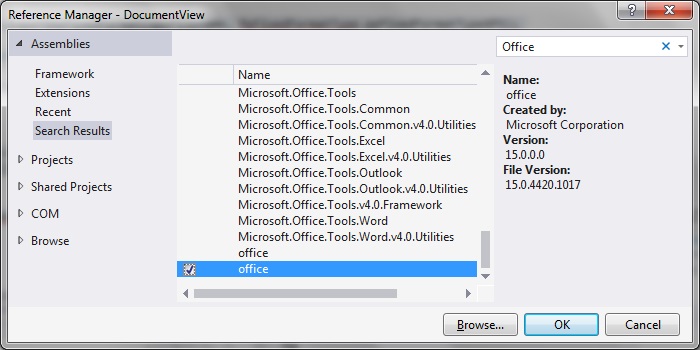
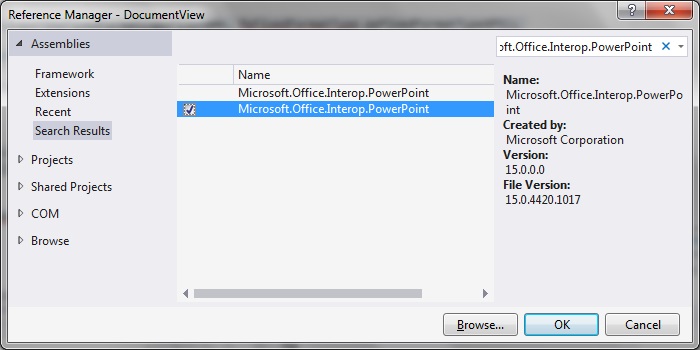
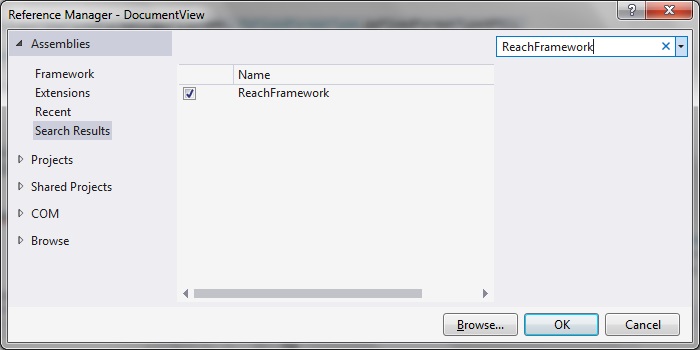
Step 5: Add the references
Office
Microsoft.Office.Interop.PowerPoint
Reach Framework
Step 6: Update MainWindow.xaml.cs
using System.Windows.Controls;

namespace DocumentView
{
   public partial class MainWindow
   {
      private static DocumentViewer _docViewer;

      public MainWindow()
      {
         InitializeComponent();
         _docViewer = DocumentViewPowerPoint;
      }

      public static DocumentViewer GetInstance()
      {
         return _docViewer;
      }
   }
}
Step 7: Run the code
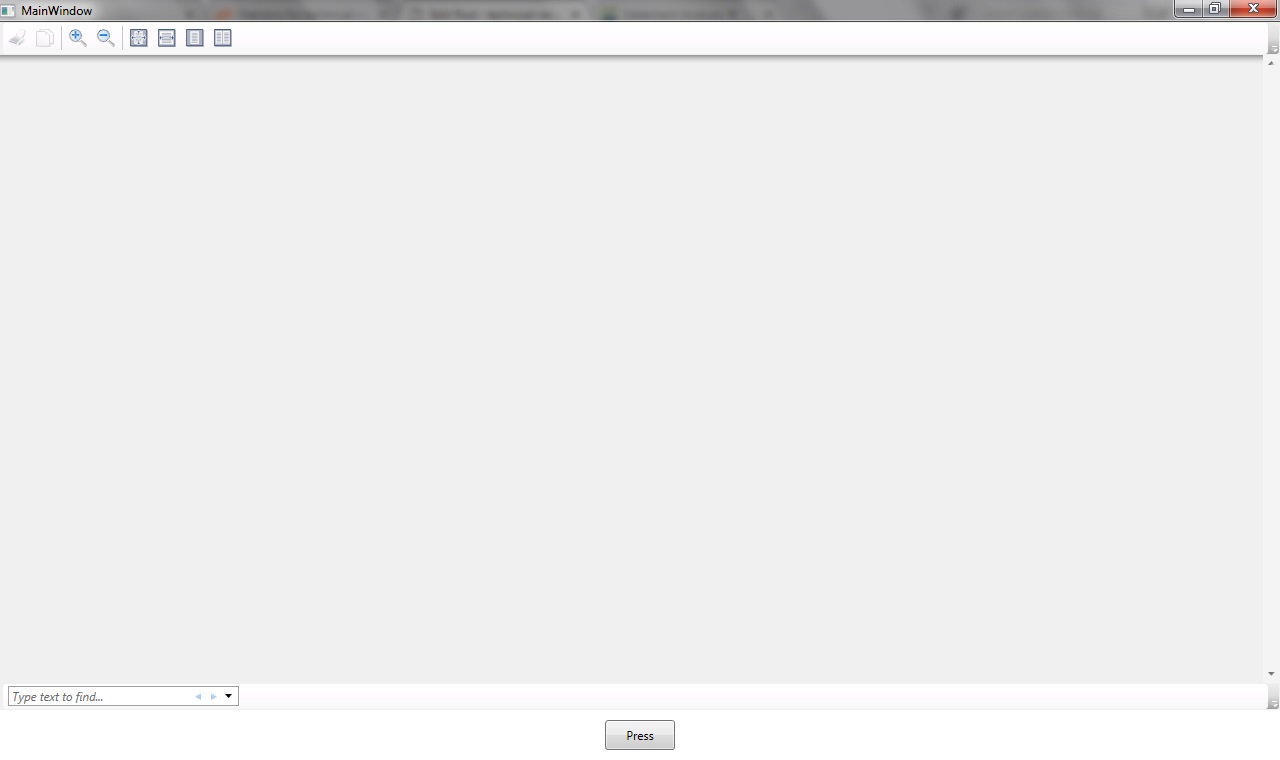
On building and running the app we see the empty DocumentViewer control as shown:
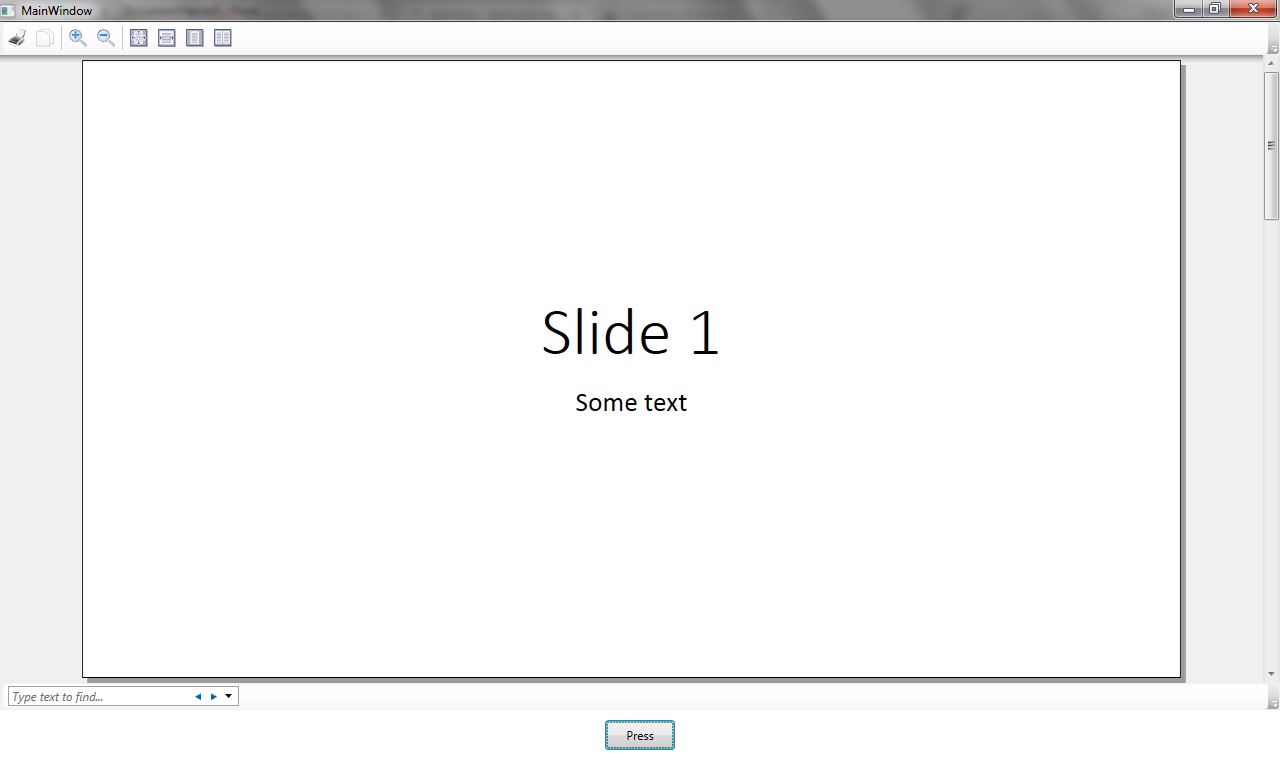
Pressing the button converts the PowerPoint into xps file format and the view property is applied so that the whole slide id displayed completely:
Download sample Visual Studio 2015 project from here: