Tag: Installer

  • Creating installations using Inno Setup in Visual Studio

    Step 1: Run the Inno Setup installer

    When using Inno Setup within Visual Studio project as a post-build exercise to create an installer package, you will need the contents of the Inno Setup folder as this will contain the command line executables, dll files etc.

    If you have not already done this, you can get it from here:

    http://www.jrsoftware.org/

    Step 2: Create a new Visual Studio project
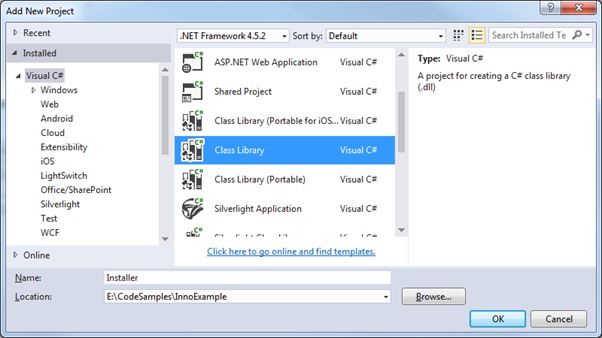
    Right click on the solution and select to add a new Installer project (class library)
    3. Add ‘Inno Setup’ contents to your Installer project

    I like to keep everything completely self-contained within Visual Studio projects, so whether you prefer to reference the Inno content that has already been installed to the Program Files folder is up to you

    Right-click and select Add > New folder.
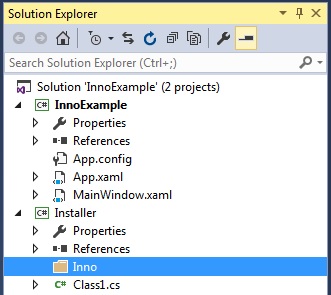
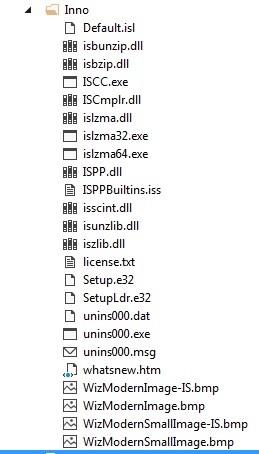
    In Windows Explorer copy the existing Inno Setup folder contents to the one you created in your Visual Studio project. Once the contents are copied over I then right-click the Inno folder and select ‘Add existing items’ to add them to the project:
    Step 4: Add the setup (*.iss) file

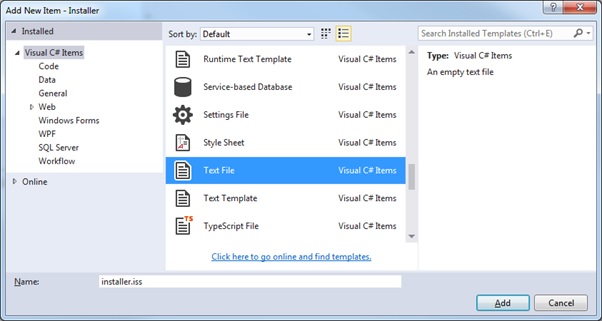
    Right click the ‘Installer’ project and select ‘Add New Item’.

    Select new Text File format but rename file to ‘installer.iss’
    Step 5: Modify the installer *.iss file

    Here we use a minimalist example of the script file for demonstration purposes.

    ; -- installer.iss --
    
    [Setup]
    AppName=InnoExampleInstaller
    AppVersion=1.0
    DefaultDirName={pf}\InnoExample
    DefaultGroupName=InnoExample
    Compression=lzma2
    SolidCompression=yes
    OutputBaseFilename=InnoExampleInstaller
    OutputDir=.
    UninstallDisplayIcon={app}\InnoExample.exe
    UninstallDisplayName=InnoExample
    
    [Files]
    Source: "..\InnoExample\bin\Debug\InnoExample.exe"; DestDir: "{app}"
    
    [Icons]
    Name: "{group}\InnoExampleInstaller"; Filename: "{app}\InnoExample.exe"
    Name: "{group}\Uninstall"; Filename: "{uninstallexe}"
    

    For information:

    {pf} – location of the Program Files directory.
    {app} – application directory
    {group} – path to the start menu folder

    See this link for more information on the meanings of the various constants:

    http://www.jrsoftware.org/ishelp/index.php?topic=consts

    Step 6: Set post-build events in the Installer project

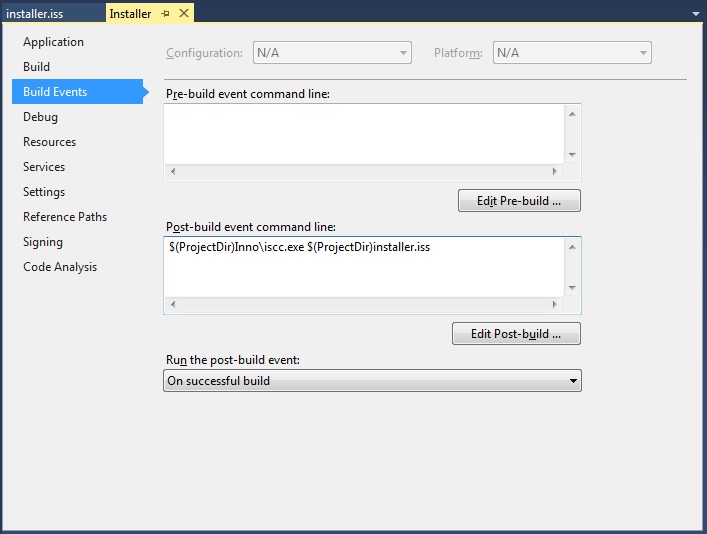
    Right click the ‘Installer’ project and select properties.
    Add the command to run the console application ‘iscc.exe’ on the selected iss file as a post build event:
    $(ProjectDir)Inno\iscc.exe $(ProjectDir)installer.iss
    Step 7: Set the project build dependencies

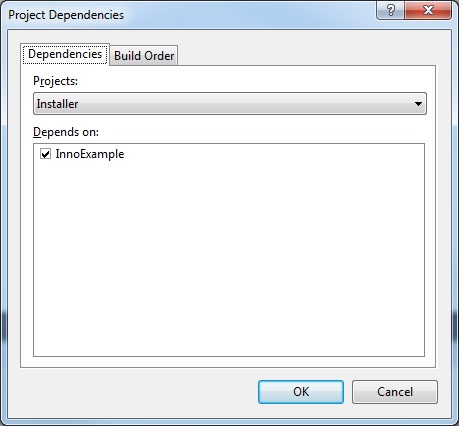
    Right click on the ‘Install’ project folder and select Build dependencies. Make sure ‘InnoExample’ is a dependency of ‘Installer’:
    Step 8: Build the project

    Output from build as shown, showing the stages of the setup as well the destination of the installer:

    1>------ Rebuild All started: Project: InnoExample, Configuration: Debug Any CPU ------
    1>  InnoExample -> E:\CodeSamples\InnoExample\InnoExample\bin\Debug\InnoExample.exe
    2>------ Rebuild All started: Project: Installer, Configuration: Debug Any CPU ------
    2>  Installer -> E:\CodeSamples\InnoExample\Installer\bin\Debug\Installer.dll
    2>  Inno Setup 5 Command-Line Compiler
    2>  Copyright (C) 1997-2016 Jordan Russell. All rights reserved.
    2>  Portions Copyright (C) 2000-2016 Martijn Laan
    2>  Inno Setup Preprocessor
    2>  Copyright (C) 2001-2004 Alex Yackimoff. All rights reserved.
    2>  
    2>  Compiler engine version: Inno Setup 5.5.9 (a)
    2>  
    2>  [ISPP] Preprocessing.
    2>  [ISPP] Preprocessed.
    2>  
    2>  Parsing [Setup] section, line 4
    2>  Parsing [Setup] section, line 5
    2>  Parsing [Setup] section, line 6
    2>  Parsing [Setup] section, line 7
    2>  Parsing [Setup] section, line 8
    2>  Parsing [Setup] section, line 9
    2>  Parsing [Setup] section, line 10
    2>  Parsing [Setup] section, line 11
    2>  Parsing [Setup] section, line 12
    2>  Parsing [Setup] section, line 13
    2>  Reading file (WizardImageFile)
    2>     File: E:\CodeSamples\InnoExample\Installer\Inno\WIZMODERNIMAGE.BMP
    2>  Reading file (WizardSmallImageFile)
    2>     File: E:\CodeSamples\InnoExample\Installer\Inno\WIZMODERNSMALLIMAGE.BMP
    2>  Preparing Setup program executable
    2>  Reading default messages from Default.isl
    2>  Parsing [LangOptions], [Messages], and [CustomMessages] sections
    2>     File: E:\CodeSamples\InnoExample\Installer\Inno\Default.isl
    2>     Messages in script file
    2>  Reading [Code] section
    2>  Parsing [Icons] section, line 19
    2>  Parsing [Icons] section, line 20
    2>  Parsing [Files] section, line 16
    2>     Reading version info: E:\CodeSamples\InnoExample\Installer\..\InnoExample\bin\Debug\InnoExample.exe
    2>  Deleting InnoExampleInstaller.exe from output directory
    2>  Creating setup files
    2>     Compressing: E:\CodeSamples\InnoExample\Installer\..\InnoExample\bin\Debug\InnoExample.exe   (1.0.0.0)
    2>     Compressing Setup program executable
    2>     Updating version info
    2>  
    2>  
    2>  Successful compile (0.827 sec). Resulting Setup program filename is:
    2>  E:\CodeSamples\InnoExample\Installer\InnoExampleInstaller.exe
    ========== Rebuild All: 2 succeeded, 0 failed, 0 skipped ==========
    

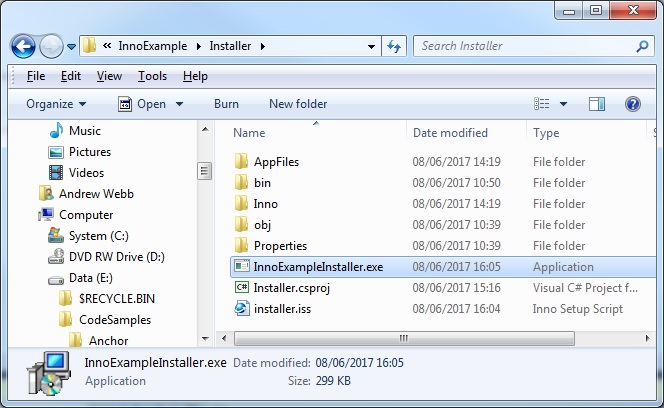
    Notice that the installer package then appears in the desired location:
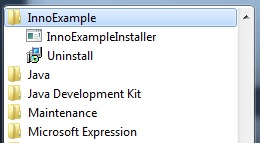
    And on running the installer the install/uninstall etc will appear in the start menu as shown:
  • Using the WiX Toolset to create installers in Visual Studio C# projects

    Using the WiX Toolset to create installers in Visual Studio C# projects

    Here is some of their online documentation on how to use the WiX Toolset to create installers:

    https://www.firegiant.com/wix/tutorial/getting-started

    Here is a quick and concise guide to set up using the WiX Toolset in a Visual Studio project, in order to create installation packages, from start to finish.

    Step 1: Install WiX Toolset

    First make sure you have installed the WiX toolset from the following site:

    http://wixtoolset.org/releases/

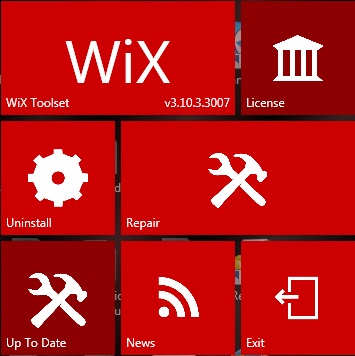
    WiX Toolset when run looks like this:

    WiX Toolset to create installers
    WiX Toolset to create installers

    Step 2: Create a new Visual Studio project

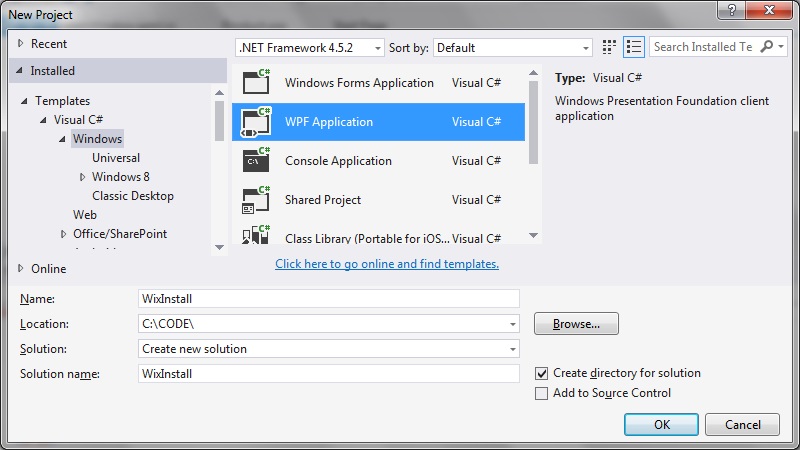
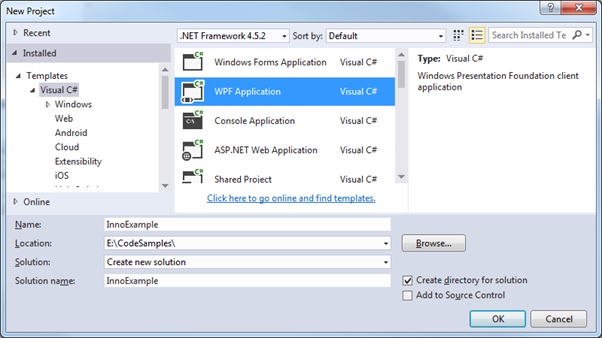
    In this example I’m creating a new WPF application:

    Step 3: Add a WiX installer project to the solution

    Right click on your solution folder and select Add > New Project…

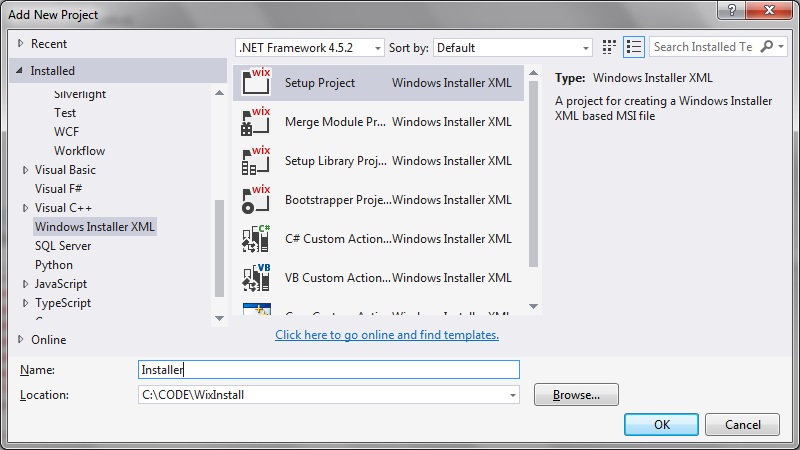
    Select ‘Windows Installer XML’ > ‘Setup Project’ and give your installer project a name:

    Step 4: generate GUID(s) for your .wxs file

    The Product > Id field in the ‘Product.wxs’ file of this installer project needs to have a string value to uniquely identify it. There are plenty of tools you can use to generate this string.

    I like this one:

    https://www.guidgenerator.com/

    Which generated for me:

    [/code language=”txt”]
    4495c49a-f6d0-4e28-9166-8158e708a13f
    [/code]

    (Please generate your own GUID, rather than copy this one)

    Then update your ‘Product.wxs’ file, filling in the ‘Id’ and ‘Manufacturer’ fields eg:

    <Product 
        Id="4495c49a-f6d0-4e28-9166-8158e708a13f" 
        Name="Installer" 
        Language="1033" 
        Version="1.0.0.0" 
        Manufacturer="WiXInstaller" 
        UpgradeCode="3dd34437-eb60-410c-bb1a-f17f077ccdd3">
    

    Step 5: Add the references to your installer project

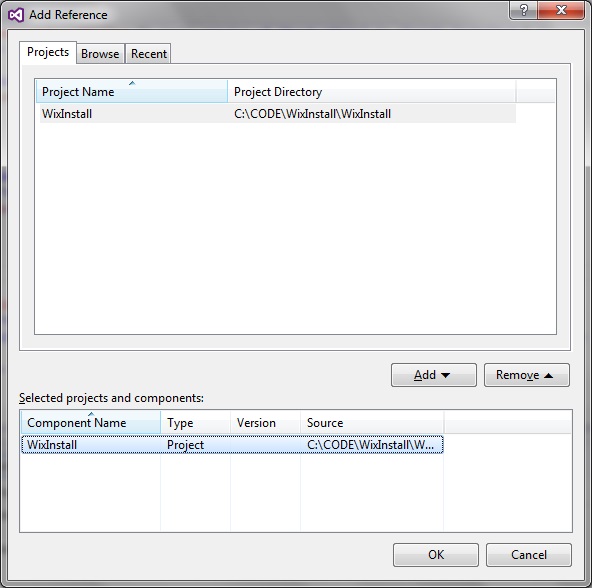
    In the Installer project, right-click the project folder and select Add > Reference.

    Step 6: Set where to install your files

    We need to be able to define where the program executable will get installed, plus any other files we wish to copy over as part of the installation.

    In the ‘Component’ part of the Project.wxs file, remove the automatically generated comments and insert the definitions for the files you which to install, as well as the destination for these files. The complete Project.wxc file now looks lie this:

    <?xml version="1.0" encoding="UTF-8"?>
    <Wix xmlns="http://schemas.microsoft.com/wix/2006/wi">
    	<Product 
        Id="4495c49a-f6d0-4e28-9166-8158e708a13f" 
        Name="Installer" 
        Language="1033" 
        Version="1.0.0.0" 
        Manufacturer="WiXInstaller" 
        UpgradeCode="3dd34437-eb60-410c-bb1a-f17f077ccdd3">
    		
        <Package InstallerVersion="200" Compressed="yes" InstallScope="perMachine" />
    
    		<MajorUpgrade DowngradeErrorMessage="A newer version of [ProductName] is already installed." />
    		<MediaTemplate />
    
    		<Feature Id="ProductFeature" Title="Installer" Level="1">
    			<ComponentGroupRef Id="ProductComponents" />
    		</Feature>
    	</Product>
    
    	<Fragment>
    		<Directory Id="TARGETDIR" Name="SourceDir">
    			<Directory Id="ProgramFilesFolder">
    				<Directory Id="INSTALLFOLDER" Name="WixInstallerExample" />
    			</Directory>
    		</Directory>
    	</Fragment>
    
    	<Fragment>
    		<ComponentGroup Id="ProductComponents" Directory="INSTALLFOLDER">			
    			<Component Id="ProductComponent">
            <File Source="$(var.WixInstall.TargetPath)" />
          </Component>
    		</ComponentGroup>
    	</Fragment>
    </Wix>
    

    Step 7: Re-build both projects and try it out

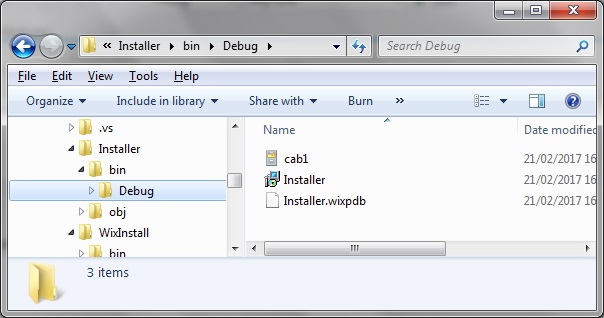
    Upon re-building the ‘Install’ project, navigate to the bin/Debug folder and see that the Installer.msi file has been generated:

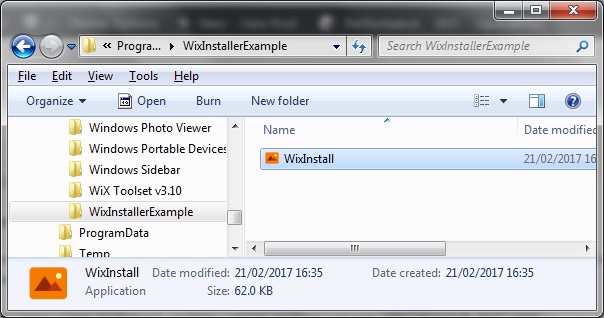
    On running the msi installer file we can then see how the program executable and program folder both get installed to the C:\Program Files directory:

    Adding additional files to the install

    Besides the main executable, it is possible to include additional resource files to the install, such icon resources, dlls, etc. To do this, just update the ‘Component’ section of the Product.wxc – one way is to simple provide a relative path to the new file:

    <Fragment>
    	<ComponentGroup Id="ProductComponents" Directory="INSTALLFOLDER">
    		<Component Id="MainExecutable" Guid="f5207608-9c81-4317-89de-061066ec863c">
    			<File Source="$(var.WixInstall.TargetPath)" />
    		</Component>
    		
    		<Component Id="icon.ico" Guid="7805267a-624b-41e7-baaf-49b82c0439cc">        
    			<File Id='icon.ico' Name='icon.ico' Source="..\WixInstall\icon.ico" KeyPath='yes' />
    		</Component>
    	</ComponentGroup>
    </Fragment>
    

    To create a subdirectory within the Installation folder

    You need to:

    1. Nest the subfolder underneath INSTALLFOLDER
    2. Create the Feature Component with the CreateFolder bit inside.

    Example code:

    <Fragment>
    	<Directory Id="TARGETDIR" Name="SourceDir">
    		<Directory Id="ProgramFilesFolder">
    			<Directory Id="INSTALLFOLDER" Name="WixInstallerExample" >
    				<Directory Id="test" Name="AnotherDirectory">
    					<Component Id="test" Guid="e29f1a9e-3ede-40d6-aba0-bfe451002ee3"
    					  SharedDllRefCount="no" KeyPath="no" NeverOverwrite="no" Permanent="no" Transitive="no" Win64="no" Location="either">
    						<CreateFolder/>
    					</Component>
    				</Directory>              
    			</Directory>
    		</Directory>
    	</Directory>
    
    	<Feature Id="test" Title="testfolder" Level="1">
    		<ComponentRef Id="test"/>
    	</Feature>
    </Fragment>
    
  • How to Create an Installer with Microsoft Visual Studio

    Introduction

    Visual Studio 2010 contains a package that enables you to create Windows installer files for your applications. Follow these simple steps to build your own setup package for the Visual Studio application you are working on.
    (more…)