Tag: MFC

  • An editable MFC List Control

    An editable MFC List Control

    A run-through on how to create a editable MFC List Control by making the CListCtrl editable.

    Visual Studio 2010 project downloadable from here.

    Much of the credit for this must go to Zafir Anjum on the Codeguru site for an article called “Editable subitems” from which this post borrows quite heavily.
    (more…)

  • Getting started with Windows GDI graphics applications in C++

    A guide to getting started with Windows graphics applications for the very first time. The Windows Graphics Device Interface (GDI) forms the basis of drawing lines and objects, and from this device contexts. I will not go into any detail about these concepts in this post. I just want to show a simple means of getting started with things like the drawing of lines and objects in Windows applications. There is nothing stopping you from reading further on the subject to increase your understanding.
    (more…)

  • Creating a Tabbed Dialog using MFC Property Sheets

    This post assumes that you are working on an existing MFC project and wish to add a tabbed dialog to your application. This example was created in Visual Studio 2008. Like most of the other postings here, there is not much in the way of extra bells and whistles, just a very simple example to get you started… VS2003 download available here.

    Create a Property Sheet:

    In the main menu, click Project -> Add Class -> MFC Class.

    Set the Class Name eg CImageSheet and set the Base Class to a CPropertySheet. Click Finish and OK:

    This will generate the “ImageSheet.h” header file and class definition.

    Create Property Pages:

    In the main menu, click Project -> Add Class -> MFC Class. Set the Class Name eg CImageDimensions and set the Base Class to a CPropertyPage:

    Repeat for as many other property pages as needed:

    Modify the Property Sheet class:

    Modify this class so that it contains additional includes for all the property pages you want to add. Also include code for the the OK/CANCEL buttons and their Windows messaging functions and the OnInitDialog() function:

    #pragma once
    
    #include "ImageDisplay.h"
    #include "ImageDimensions.h"
    
    // CImageSheet
    class CImageSheet : public CPropertySheet
    {
    	DECLARE_DYNAMIC(CImageSheet)
    
    public:
    	CImageSheet(UINT nIDCaption, CWnd* pParentWnd = NULL, UINT iSelectPage = 0);
    	CImageSheet(LPCTSTR pszCaption, CWnd* pParentWnd = NULL, UINT iSelectPage = 0);
    	virtual ~CImageSheet();
    	virtual BOOL OnInitDialog();
    
    private:
    
    	CButton m_OKbutton;
    	CButton m_Cancelbutton;	
    
    protected:
    
    	afx_msg void OnOKButton();
    	afx_msg void OnCancelButton();
    
    	DECLARE_MESSAGE_MAP()
    };
    

    Set the OnInitDialog() initialization:

    //
    // Message handler for when user initializes dialog
    //
    BOOL CImageSheet::OnInitDialog()
    {
    	CWnd* pOKButton = GetDlgItem( IDOK );
    	ASSERT( pOKButton );
    	pOKButton->ShowWindow( SW_HIDE );
    
    	CWnd* pCANCELButton = GetDlgItem( IDCANCEL );
    	ASSERT( pCANCELButton );
    	pCANCELButton->ShowWindow( SW_HIDE );
    
    	// Set Flags for property sheet
    	m_bModeless    =  FALSE;
    	m_nFlags      |=  WF_CONTINUEMODAL;
    	BOOL bResult   = CPropertySheet::OnInitDialog();
    	m_bModeless    =  TRUE;
    	m_nFlags      &=  ~WF_CONTINUEMODAL;
    
    	//Get button sizes and positions
    	CRect rect, tabrect;
    	GetDlgItem( IDOK )->GetWindowRect( rect );
    	GetTabControl()->GetWindowRect( tabrect );
    
    	ScreenToClient( rect );
    	ScreenToClient( tabrect );	
    
    	//Create new OK button and set standard font
    	m_OKbutton.Create( "OK",
    						BS_PUSHBUTTON | WS_CHILD | WS_VISIBLE | WS_TABSTOP,
    						rect,
    						this,
    						IDC_IMAGE_OK );
    
    	m_OKbutton.SetFont( GetFont() );
    
    	//Get CANCEL button size and position
    	GetDlgItem( IDCANCEL )->GetWindowRect( rect );
    	ScreenToClient( rect );
    
    	//Create new SAVE button (where CANCEL was) and set standard font
    	m_Cancelbutton.Create( "Cancel",
    							BS_PUSHBUTTON | WS_CHILD | WS_VISIBLE | WS_TABSTOP,
    							rect,
    							this,
    							IDC_IMAGE_CANCEL );
    
    	m_Cancelbutton.SetFont( GetFont() );	
    	UpdateData( FALSE );
    
    	return bResult;
    }
    

    And the Message Maps:

    BEGIN_MESSAGE_MAP(CImageSheet, CPropertySheet)
    	ON_BN_CLICKED(IDC_IMAGE_OK, OnOKButton)
    	ON_BN_CLICKED(IDC_IMAGE_CANCEL, OnCancelButton)
    END_MESSAGE_MAP()
    

    Add any other additional includes

    The #include “resource.h” should be included in the property page class definitions.

    Add the necessary identifiers in the resource.h header file:

    #define IDC_IMAGE_OK                    1000
    #define IDC_IMAGE_CANCEL                1001
    

    Run your Tabbed Dialog:

    CImageSheet*      imagedlg            = new CImageSheet( "Image Capture Dialog" );
    CImageDisplay*    pageImageDisplay    = new CImageDisplay;
    CImageDimensions* pageImageDimensions = new CImageDimensions;
    
    ASSERT( imagedlg );
    ASSERT( pageImageDisplay );
    ASSERT( pageImageDimensions );	
    
    imagedlg->AddPage( pageImageDimensions );
    imagedlg->AddPage( pageImageDisplay );
    
    imagedlg->Create( this,
                      -1,
                      WS_EX_CONTROLPARENT | WS_EX_TOOLWINDOW );	
    
    imagedlg->ShowWindow( SW_SHOW );
    

    Click here for sample VS2003 project.

  • Dynamically Created MFC Controls and their Notifications

    I was required to create a dialog application with dynamically created checkboxes (CButtons).  Given that selection of a certain hardware types in the software would result in completely different checkbox layouts.  In these situations, it is the software that has to automatically do the work normally done by using the Dialog Editor toolbox to insert static controls. This involves the following steps: (more…)

  • Simple Multithreading in C++ / MFC

    Right now I am just starting with a very simple example – no fancy stuff – just a single thread to demonstrate a sequence that updates a counter 20 times per second. (more…)

  • ‘Blitting’ a Bitmap Image to the Screen.

    I recently needed to revisit this to create simple monochrome bitmaps representing the sets of nozzles turned off/on on a Xaar microarrayer printhead.

    Sample code here.  Essential steps are outlined in the following code

    // 1. Create the uninitialized bitmap, that is compatible
    // with the the specified device context
    CPaintDC dc( this );
    CBitmap bitmap;
    bitmap.CreateCompatibleBitmap( &dc, 20, 20 );
    
    // 2. Create memory device context, that is compatible
    // with the specified device (dc in this case)
    CDC dcMem;
    dcMem.CreateCompatibleDC( &dc );
    
    // 3. Obtain/create the bitmap and select into
    // the memory device context.
    CBrush brushblue( RGB( 0, 0, 255 ) );
    CBrush brush( RGB( 0, 255, 255 ) );
    CBitmap* pOldBitmap = dcMem.SelectObject( &bitmap );
    dcMem.FillRect( CRect( 0, 0, 10, 10 ), &brushblue );
    dcMem.FillRect( CRect( 10, 0, 20, 10 ), &brush );
    dcMem.FillRect( CRect( 0, 10, 10, 20 ), &brush );
    dcMem.FillRect( CRect( 10, 10, 20, 20 ), &brushblue );
    
    // 4. Obtain the bitmap dimensions in pixels, making sure
    // they are then mapped into their corresponding logical
    // units
    BITMAP bm;
    bitmap.GetBitmap( &bm );
    CPoint size( bm.bmWidth, bm.bmHeight );
    CPoint org( 0, 0 );
    dc.DPtoLP( &size );
    dc.DPtoLP( &org );     
    
    // 5. Specify the memory device context’s mapping mode:
    // MM_ANISOTROPIC,  MM_HIENGLISH etc
    dcMem.SetMapMode( dc.GetMapMode() );
    
    // 6. ‘Blit’ the rectangular block of pixel data from
    // the source device context (dcMem) to the destination
    // device context (dc)
    dc.BitBlt( 12,
               12,
               size.x,
               size.y,
               &dcMem,
               org.x,
               org.y,
               SRCCOPY );
    
    // 7. Restore the default bitmap
    dcMem.SelectObject( pOldBitmap );
    

    A simple dialog application example to download:    Bitmaps.zip

  • Creating Bitmap Files from Raw Pixel Data in C++

    Creating the byte array

    This post describes a means of taking data in the form of raw pixels containing RGB values as well as the image height, width and the number of bits per pixel (24 in this case) and converting this into a bitmap (BMP) file.

    Example Visual Studio 2010 project is downloadable from here:

    www.technical-recipes.com/Downloads/BitmapRawPixels.zip

    In this this post I originally described how I needed a means of representing binary array values (inkjet printhead nozzles turned ON/OFF) as a set of colored ‘squares’ or pixels, so that nozzles switched ON/OFF could be represented by two different colours – black or white. The bitmap width was always going to be 128, while the bitmap length (“SizeValue”) was one of a set of discrete set of values in the range { 1000, 1250, 1251, 1350 }. For this example I did not have to worry about padding additional values (more…)

  • Maintaining Recent File Lists in MFC Applications

    A simple application in Visual Studio 2003 that builds on the “MyPad” application provided by Jeff Prosise in Programming Windows with MFC. Alternatively you could probably create the same by running the AppWizard to create a standard view-based application, but making sure to uncheck the Document/View architecture box, as well as the ActiveX Controls box to avoid unnecessary code. (more…)

  • How to Create Resizable Dialogs in MFC

    Example 1: Using Paulo Messina’s Code Project sample

    A minimalist use of the CResizeableDialog class as described by Paulo Messina at CodeProject .   Hope you find the following recipe useful. Visual Studio 2003 source code is downloadable from here.

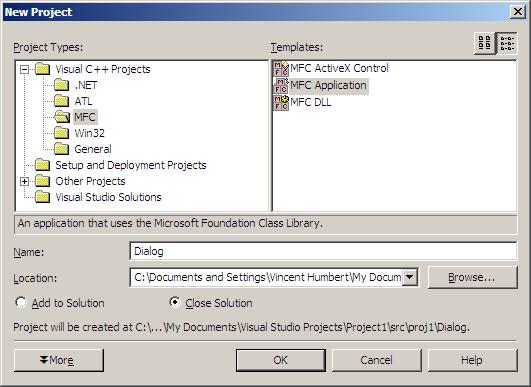
    1. Create a new MFC Project

    resizeable_dialog1

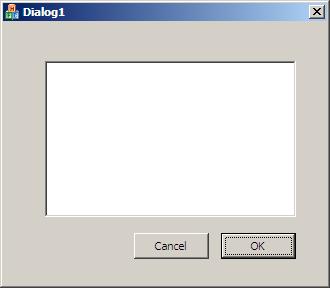
    2.  In the resource editor, add a simple edit control that will be used to demonstrate how this resizing works:

    resizeable_dialog2

    3. Download the CodeProject library to a location of your choice.

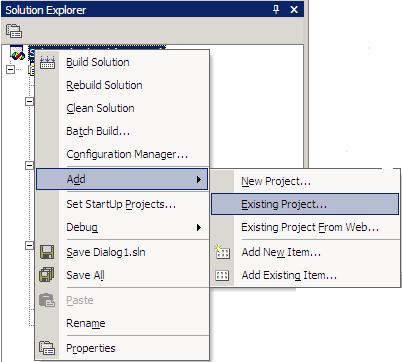
    4. Add this downloaded project to the same dialog project you are working on.  To do this, right-click the topmost solution folder and select Add Existing Project:

    resizeable_dialog3

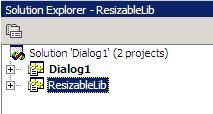
    So that the extra project is added:

    resizeable_dialog4

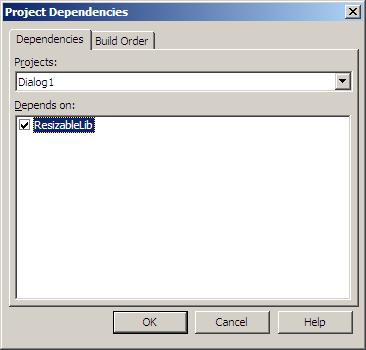
    5. Right-click on the Dialog (or whatever you called your project)  folder and select “Set Project Dependencies”, making sure ResizableLib is checked:

    resizeable_dialog5

    6. In the Dialog code make sure CDialog is replaced with CResizeableDialog at the following appropriate points.

    (i) In the Dialog class (header file) be sure to insert #include “ResizableDialog.h”. In this Dialog class, replace CDialog with CResizableDialog:

    #include "ResizableDialog.h"
    
    // CDialogDlg dialog
    class CDialogDlg : public CResizableDialog
    
    {
    // Construction
    public:
    	CDialogDlg(CWnd* pParent = NULL);	// constructor
    
    // Dialog Data
    
    	enum { IDD = IDD_DIALOG_DIALOG };
    
    protected:
            // DDX/DDV support
    	virtual void DoDataExchange(CDataExchange* pDX);	
    
    // Implementation
    protected:
    
    	HICON m_hIcon;
    
    	// Generated message map functions
    	virtual BOOL OnInitDialog();
    	afx_msg void OnSysCommand(UINT nID, LPARAM lParam);
    
    	afx_msg void OnPaint();
    	afx_msg HCURSOR OnQueryDragIcon();
    
    	DECLARE_MESSAGE_MAP()
    };
    

    Basically replace all instances of CDialog with CResizableDialog, except in CAboutDlg of course.

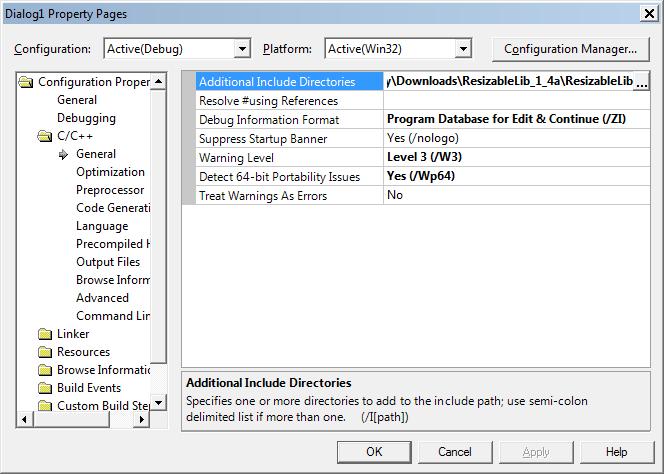
    7. Add the dependencies needed to build the project. In Project Properties-> C/C++ -> General -> Additional Include Directories:

    resizeable_dialog6

    8. Finally, In OnInitDialog() add the extra initialization needed make the gripper visible, set maximum dialog size, add anchors to control items etc and we’re done.

    // Initialize anchor points
    AddAnchor(IDOK, BOTTOM_RIGHT);
    
    AddAnchor(IDCANCEL, BOTTOM_RIGHT);
    AddAnchor(IDC_EDIT1, TOP_LEFT, BOTTOM_RIGHT);
    
    // Set max tracking size to half a screen
    CRect rc;
    GetDesktopWindow()->GetClientRect(&rc);
    SetMaxTrackSize(CSize(rc.Width(), rc.Height()));
    
    // Set max. position and size on top of the screen
    rc.bottom = 200;
    SetMaximizedRect( rc );
    

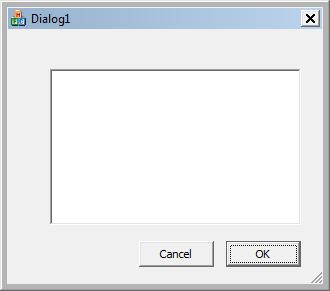
    resizeable_dialog7

    Example 2: Stack Overflow posting

    Courtesy of Mark Ransom.  Some things things needed to use this class are:

    1. Set your dialog style to include WS_THICKFRAME:

    IDD_DIALOGRESIZE_DIALOG DIALOGEX 0, 0, 215, 178
    STYLE DS_SETFONT | DS_MODALFRAME | DS_FIXEDSYS | WS_POPUP |
          WS_VISIBLE | WS_CAPTION | WS_SYSMENU | WS_THICKFRAME
    EXSTYLE WS_EX_APPWINDOW
    CAPTION "DialogResize"
    FONT 8, "MS Shell Dlg", 0, 0, 0x1
    BEGIN
        LISTBOX         IDC_LIST1,35,35,143,99,LBS_SORT |
                        LBS_NOINTEGRALHEIGHT |
                        WS_VSCROLL | WS_TABSTOP
    END
    

    2. Make your dialog class derive from the CResizableDialog base class instead of CDialog or CDialogEx:

    // CDialogResizeDlg dialog
    class CDialogResizeDlg : public CResizableDialog
    

    3. In your OnInitDialog function call the AutoMove function for each child control to define how much it should move and how much it should resize relative to the parent dialog. Use this example to ‘stretch’ the dialog child controls from a fixed position:

    AutoMove( IDC_LIST1, 0, 0, 100, 100 );
    

    4. In the dialog class you are using (not the CResizable base class), replace all instances of CDialog with CBaseDialog.

    Example VS2003 code downloadable from here.

    Example VS2010 code downloadable from here.

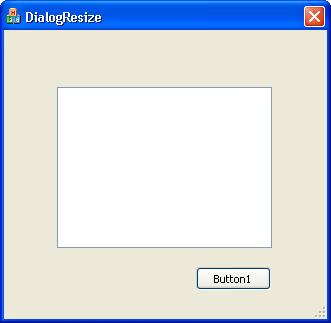
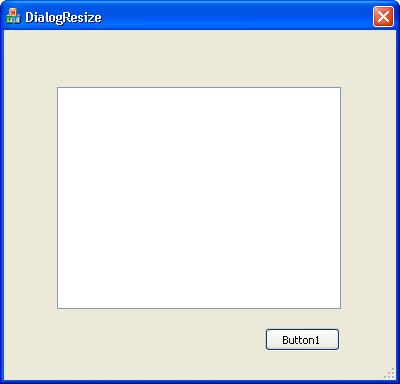
    Another VS2010 project is available this time incorporating a list control that is resized and repositioned upon stretching the dialog and a button control that is repositioned only. We achieve this by specifying how much we wish to allow the button control to be repositioned, while leaving its resizing parameters set to zero:

    AutoMove( IDC_LIST1, 0, 0, 100, 100 );
    AutoMove( IDC_BUTTON1, 100, 100, 0, 0 );
    

    This is the dialog before repositioning:

    ResizeBefore

    And this is the dialog after repositioning:

    ResizeAfter

    Updated VS2010 code downloadable from here.

  • Finding Minimal Spanning Trees using Kruskal’s Algorithm in MFC / C++ / Boost libraries

    Kruskal’s algorithm is used to find the minimal spanning tree for a network with a set of weighted links. This might be a telecoms network, or the layout for planning pipes and cables, or one of many other applications. (more…)