I have recently been working on a knotty problem involving control and image acquisition using the Flea®2 camera, using FlyCapture® SDK by Point Grey Research, Inc.
They have an impressive set of code samples to try all manner of things related to image grabbing and setting the camera controls hue, focus, colour etc. After an initial frustrating period of figuring out how to incorporate their APIs into projects of my own, things are much much simpler than I originally thought. When using this SDK, you will probably need to upgrade to Visual Studio 2005 or higher, if you have not yet done so.
FOR 32-BIT WINDOWS PLATFORMS
1. Install the full FlyCapture software package.
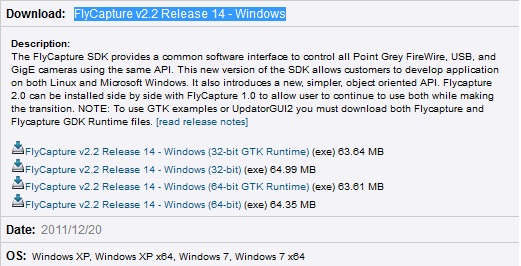
For the example you see here I used Flycapture v2.2 in a relatively recent version of Visual Studio, probably VS 2008. At the time this was in a Windows XP (32-bit) platform, so you will probably need to download whichever product is appropriate for your needs:
2. Create your Visual Studio project
For example, a Win32 console application, just to keep things simple for now. You can always play around using more involved project types at a later time.
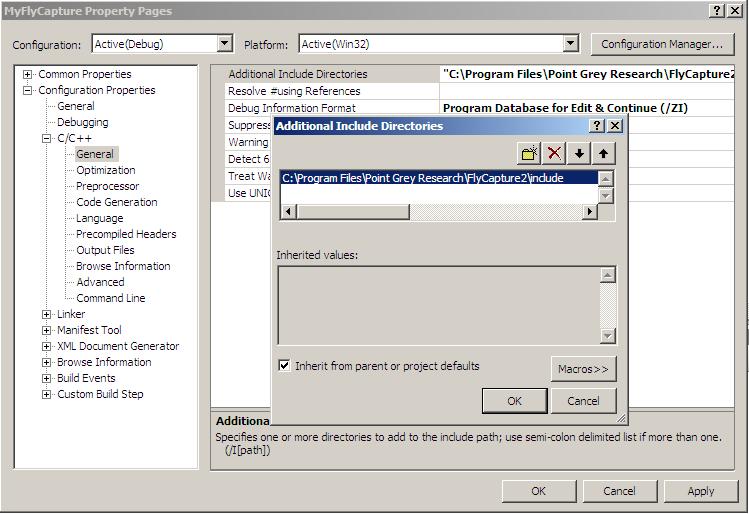
3. Set the Visual Studio project dependencies
Once you have created the VS C++ project intended to run the set of APIs provided by the FlyCapture SDK, it is case of setting your project dependencies, as follows:
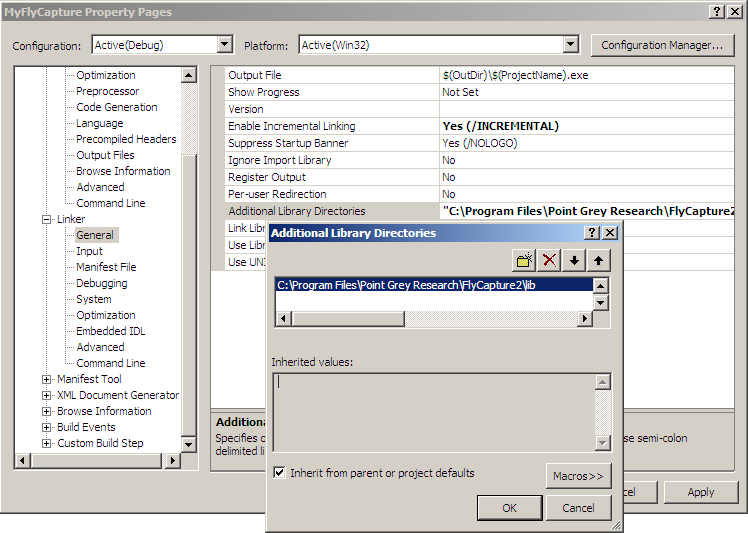
4. Set the libraries:
5. Import the FlyCapture property sheet(s), if necessary:
In View -> Property Manager, right-click the project folder and select “Add Existing Property Sheet”:

Navigate to where the vsprops folder has been installed (usually C:\Program Files\Point Grey Research\FlyCapture2\src\) and select FlyCapture2.vsprops:
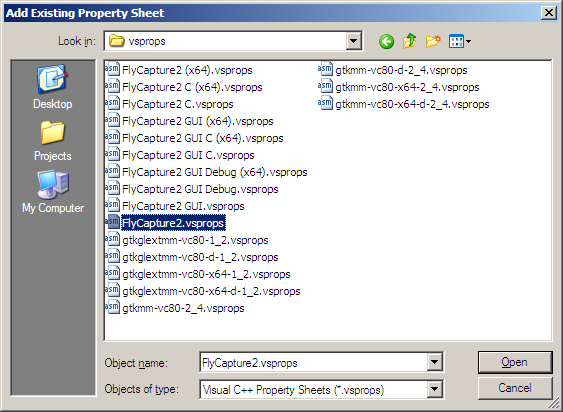
These version of .vsprops files do not appear to be supported in Visual Studio 2010.
6. Sort out any compiler/linker issues
When attempting to try this for the first time you may encounter error messages similar to this:
1>flycap1.obj : error LNK2019: unresolved external symbol "__declspec(dllimport) public: virtual __thiscall FlyCapture2::Camera::~Camera(void)" (__imp_??1Camera@FlyCapture2@@UAE@XZ) referenced in function _wmain
1>flycap1.obj : error LNK2019: unresolved external symbol "__declspec(dllimport) public: __thiscall FlyCapture2::Camera::Camera(void)" (__imp_??0Camera@FlyCapture2@@QAE@XZ) referenced in function _wmain
1>C:\Users\andy\Documents\Visual Studio 2010\Projects\flycap1\Debug\flycap1.exe : fatal error LNK1120: 2 unresolved externals
Make sure the compiler knows where to find the .lib files needed, as described in step 4. For example, when running a Win32 console application, then you will probably need the 32-bit version of the SDK to run correctly, not the 64-bit version. If this is the case, download the 32-bit version of the SDK, and set the Additional Library Directories using this installation, as described in step 4.
7. Try it.
You are now free to use the FlyCapture include to access the full set of FlyCapture APIs. Provided the previous steps have been executed correctly, the following simple code with FlyCapture2 dependency should now compile without whinges:
#include "FlyCapture2.h"

using namespace FlyCapture2;

int _tmain(int argc, _TCHAR* argv[])
{
    // Do Flycapture2 related stuff...
    Camera cam;
    return 0;
}
FOR 64-BIT WINDOWS PLATFORMS
Pretty much the same as for the 32-bit setup, but you will probably need to consider the following steps:
1. Make sure you have downloaded and installed the 64-bit version of the SDK.
2. Configure your Visual Studio Configuration Manager to 64-bit. In Visual Studio select Project > Properties > Configuration Properties and change from Win32 to x64 accordingly.
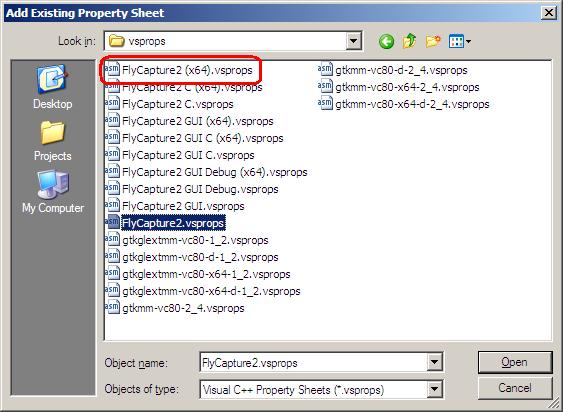
3. Instead of installing the FlyCapture2.vsprops property sheet as used for the 32-bit setup, you will probably need the FlyCapture2 (x64).vsprops property page:
Comments
11 responses to “Getting Started with the FlyCapture SDK”
Hi,
I find you’re blog post really interesting because I too have two Firefly MV Point grey cameras which I have been trying to get working with the FlyCapture2 SDK but I have ahad a frustrating time trying to get the sample code running.
Would you be able to explain to me what problem you had and how you solved it?
Regards,
Ricardo Gaviria
Hi Ricardo
Perhaps you could post some sample output text / error messages you are getting. This would give a better idea of the problem, of which there can be many. For example the problem could be Visual Studio related, or maybe the version of Flycapture (32/64 bit?) you are using.
Hi happyuk,
I followed your guide but I still have some problem.
Environment: Windows 7 64-bit, Visual Studio 2008.
I created a project setting the dependencies and the libraries as you explained; at first I got the error you talk about on step 6, since I was using the 64-bit version. Then I switched to the 32-bit SDK, and changed libraries and dependencies accordingly; unfortunately, I still get the very same error at compile time.
Any clues? Any help would be appreciated, I’m really stuck here LOL
Thank you!
Daniele
Hi Daniele. I will have another practice run in setting up the Visual Studio to run Flycapture SDKs as soon as I get the chance. If I find any further insights I will post thgem here. Andy
I think the problem might be solved by setting the solution platform to x64.
It’s in property pages->configuration manager.
I’m stuck at the same error. Using VC 2010. 64-bit did not help.
Fixed my problems – I was using the 7.1 SDK.
Good stuff. This info you have posted is also useful to others.
Andy
I am also stuck in the same problem. Can you elaborate on your fix?
This post was originally intended for setting up FlyCapture on Windows 32-bit Platforms. It seems that a number have had problems with 64-bit versions.
I will take a look at setting this up fpr 64-bit platforms and update this post accordingly.
Great !!! it worked well for Me!!!!