As a newcomer to image processing, I have attempted to achieve the tracking of coloured objects in some sample video footage. In my case, my little one’s blue gloves moving in a snow-covered landscape (a bitterly cold Musselburgh allotments, December 2010).

Pre-requisites
To get this to build and work properly, please ensure the following pre-requisites have been installed to your satisfaction:
Set up OpenCV and cvBlobsLib in Visual Studio.
Install and set up ffmpeg.
In the example given here we essentially do the following four things:
1. Obtain footage from the camera or video file.
CvCapture* capture = cvCaptureFromFile( "MOV.MPG" );
2. Convert video formats
Convert frame from its default BGR (blue, green, red) format into HSV (Hue, Saturation, Value) format and extract the binary (black and white) image from it:
cvCvtColor( img, imgHSV, CV_BGR2HSV );
It is much easier to detect coloured areas using the HSV (hue, saturation, value) format rather than the RGB (red, green, blue) format. HSV has the advantage of only having to use a single number to detect the colour (“hue”), in spite of there being several shades of that colour, ranging from relatively from light shades to darker shades. The amount of colour and the brightness of the colour are handled by the “saturation” and “value” parameters respectively.
3. Do the thresholding
The original image is kept intact for later use, and we then threshold the HSV reference image (imgHSV) to obtain our black and white image (imgThresh):
cvInRangeS( imgHSV,
            cvScalar( 104, 178, 70  ),
            cvScalar( 130, 240, 124 ),
            imgThresh );
The two cvScalar parameters represent the lower and upper bound of HSV (in that order) values that are blueish in colour. I got some suitable max/min values by grabbing some screenshots of the coloured objects I was interested in tracking and observing the kinds of hue/saturation/lum values that occur.
By selecting the region of interest (eg the blue gloves), and copying and pasting into another MS Paint document and expanding the area of interest, you can get a reasonable overview of the pixel colours that you are interested in tracking:

Dab on selected pixels and use the colour picker tool to display the hue/saturation/luminosity values mentioned earlier:
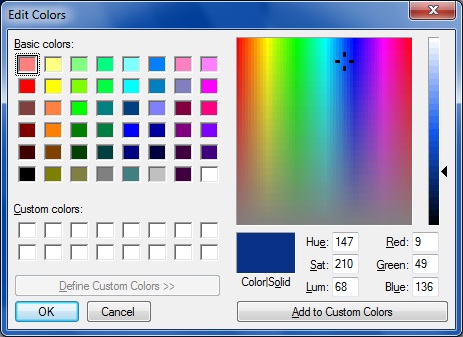
After writing down a few of these results I was able to get estimates of where these upper and lower values occur in the coloured regions of interest. This is far quicker than using trial and error.
It should be noted in MS Paint, the hue values range from 0-239, while OpenCV’s hue values range from 0-179. So any hue value you take from MS Paint for use in your code will need to be scaled using the factor 180 / 240. A MS Paint Hue value of 147 for example becomes 147 * (180/240) = 110 in OpenCV.
In MS Paint the Saturation and Luminosity are also in the range 0-239 while the OpenCV equivalents are in the range 0..255 (8 bit encoding). A MS Paint saturation of 210, for example, becomes (210/240) * 255 = 223 in OpenCV.
4. Do the blob detection
Use the cvBlobsLib APIs to detect the white blobs from the black background, excluding those of an inappropriate size.
blobs = CBlobResult( imgThresh, NULL, 0 );

blobs.Filter( blobs,
              B_EXCLUDE,
              CBlobGetArea(),
              B_LESS,
              10 );
5. Insert bounding rectangles
Attach bounding rectangles to the detected coloured areas in the input video:
cvRectangle( frame,
             pt1,
             pt2,
             cvScalar(0, 0, 0, 0),
             1,
             8,
             0 );
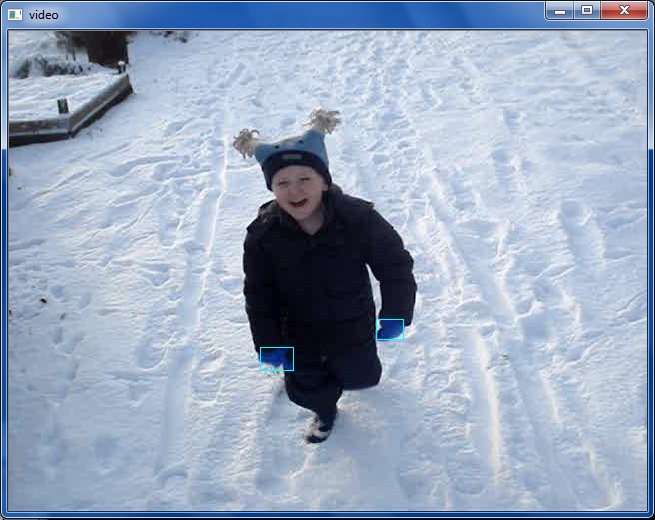
So that the bounding rectangles covering the regions of interest are visible in the orginal input video:

Full Code Listing
// ObjectTracking.cpp : Define the entry point for console app.
#include "cv.h"
#include "highgui.h"
#include "BlobResult.h"
// Get thresholded image in HSV format
IplImage* GetThresholdedImageHSV( IplImage* img )
{
    // Create an HSV format image from image passed
    IplImage* imgHSV = cvCreateImage( cvGetSize( img ),
                                      8,
                                      3 );

    cvCvtColor( img, imgHSV, CV_BGR2HSV );

    // Create binary thresholded image acc. to max/min HSV ranges
    // For detecting blue gloves in "MOV.MPG - HSV mode
    IplImage* imgThresh = cvCreateImage( cvGetSize( img ),
                                         8,
                                         1 );

    cvInRangeS( imgHSV,
                cvScalar( 104, 178, 70  ),
                cvScalar( 130, 240, 124 ),
                imgThresh );

    // Tidy up and return thresholded image
    cvReleaseImage( &imgHSV );
    return imgThresh;
}
int main()
{
    CBlobResult blobs;
    CBlob *currentBlob;
    CvPoint pt1, pt2;
    CvRect cvRect;
    int key = 0;
    IplImage* frame = 0;

    // Initialize capturing live feed from video file or camera
    CvCapture* capture = cvCaptureFromFile( "MOV.MPG" );

    // Get the frames per second
    int fps = ( int )cvGetCaptureProperty( capture,
                                           CV_CAP_PROP_FPS );

    // Can't get device? Complain and quit
    if( !capture )
    {
        printf( "Could not initialize capturing...\n" );
        return -1;
    }

    // Windows used to display input video with bounding rectangles
    // and the thresholded video
    cvNamedWindow( "video" );
    cvNamedWindow( "thresh" );

    // An infinite loop
    while( key != 'x' )
    {
        // If we couldn't grab a frame... quit
        if( !( frame = cvQueryFrame( capture ) ) )
            break;

        // Get object's thresholded image (blue = white, rest = black)
        IplImage* imgThresh = GetThresholdedImageHSV( frame );

        // Detect the white blobs from the black background
        blobs = CBlobResult( imgThresh, NULL, 0 );

        // Exclude white blobs smaller than the given value (10)
        // The bigger the last parameter, the bigger the blobs need
        // to be for inclusion
        blobs.Filter( blobs,
                      B_EXCLUDE,
                      CBlobGetArea(),
                      B_LESS,
                      10 );

        // Attach a bounding rectangle for each blob discovered
        int num_blobs = blobs.GetNumBlobs();

        for ( int i = 0; i < num_blobs; i++ )
        {
            currentBlob = blobs.GetBlob( i );
            cvRect = currentBlob->GetBoundingBox();

            pt1.x = cvRect.x;
            pt1.y = cvRect.y;
            pt2.x = cvRect.x + cvRect.width;
            pt2.y = cvRect.y + cvRect.height;

            // Attach bounding rect to blob in orginal video input
            cvRectangle( frame,
                         pt1,
                         pt2,
                         cvScalar(0, 0, 0, 0),
                         1,
                         8,
                         0 );
        }

        // Add the black and white and original images
        cvShowImage( "thresh", imgThresh );
        cvShowImage( "video", frame );

        // Optional - used to slow up the display of frames
        key = cvWaitKey( 2000 / fps );

        // Prevent memory leaks by releasing thresholded image
        cvReleaseImage( &imgThresh );
    }

    // We're through with using camera.
    cvReleaseCapture( &capture );

    return 0;
}
Sample (compressed) MPG file “MOV.MPG” downloadable from here.
See this similar post for tracking colored objects using OpenCV calls only, no cvBlobsLib:
https://www.technical-recipes.com/2015/using-opencv-to-find-and-draw-contours-in-video/
Other posts related to image detection
Displaying AVI Video using OpenCV
Analyzing FlyCapture2 Images obtained from Flea2 Cameras
Integrating the FlyCapture SDK for use with OpenCV
OpenCV Detection of Dark Objects Against Light Backgrounds
Getting Started with OpenCV in Visual Studio
Object Detection Using the OpenCV / cvBlobsLib Libraries
Comments
19 responses to “Tracking Colored Objects in Video using OpenCV and cvBlobsLib”
You pretty much said what i could not effectively communicate. +1
My blog:
DSL Anbieter klick hier
thanks a lot .
now i know how to determine lower and upper scale the specific color in HSV color space with openCV
You’re welcome. I have found it much easier to achieve using HSV formats over RGB formats.
Andy
Hello sir, I really liked this article of yours. If possible could you write a tutorial on how to install cvblobs with microsoft visual studio 2010. Its really hard to install.
Hi I have a previous post that has some guidelines on incorporating cvBlobsLib into Visual Studio. From what I remember it seemed to work in both the 2003 and 2010 versions:
https://www.technical-recipes.com/2011/object-detection-using-the-opencv-cvblobslib-libraries/
Specifically I think you will find the sections “Install the cvBlobsLib library” and onwards to be useful in installing the thing. It’s as good as a tutorial. I agree these things can be a pig to set up and get working. Let me know if you have problems.
Kind regards, Andy.
Thanks very much for this, I been working on the usual ‘air mouse’ that everyone does, this helped me learn the blob skin detection, I also made your example track a blue led light for a mouse, problem with the light is I had no clicking function.
Anyways if anyone uses this for linux don’t forget to add the -lblob to the g++ compiling line.. that one got me for about 30 min…
Thanks TJ. Good to see this post has been of use, and thanks for the additional info.
Thanks a lot again. I have learned how to tracking coloured objects.
Lovely stuff. Good that these posts seem to be comprehensible.
How do you detect the direction of movement? Left, right or whatever?
Hi Pratyus I would suggest Googling ‘motion detection’ or something similar. Not something I have had much experience in doing as yet.
Thanks very much for this,how many frame per second fps process .
when i read video and show it with out any process the speed 30fps ,but when convert from rgb model to hsv model and use cvInRangeS to threshold the color to convert to binary the number of frame process is less than 10 fps ???
the cpu core i7 and os win7 64 bit
I do not know the answer to this, but when I re-visit this I may have some more insights. Andy
hi
I want to use this lib(cvblob) for os win7 64 bit,
you think that work?
thanks
Yes, I think it probably should.
Mine is also running in Win 7 64-bit.
Andy
How do I run this tutorial in codeblocks.
I don’t have cvBlobLibs for codeblocks. Compiled the ones for Visual studio but could not use that lib with codeblocks project.
Hi Tariq. May get around this aspect one day. Thanks for bringing it to my attention. So much to do so little time! Please supply me with any progress in this you may have. Andy
hi sir great tutorial it worked fine. how do i modify this code to detect object in an image (ex: detect a face in an image) can you help me
thanks
i am trying to implement your idea but its giving me include “BlobResult.h” no such file or directory fatal error . i am using Linux ubuntu 12.04 i am also get tried to include like this # btu giving same error…………….