Making png images transparent using paint.net

Something I needed recently which I’ve wanted to blog. It’s fairly simple, and also documented elsewhere online, but as with most things I do technical blog wise, explanations work better with screenshots.

Example image, “tick.png” with a non-transparent white background:

tick

If you don’t have it already, download and install paint.net. It is great and is to MS Paint what Notepad++ is to MS Notepad, though you need Windows 7 or above as a minimum system requirement:

http://www.dotpdn.com/downloads/pdn.html

Fire up paint.net and open the image:
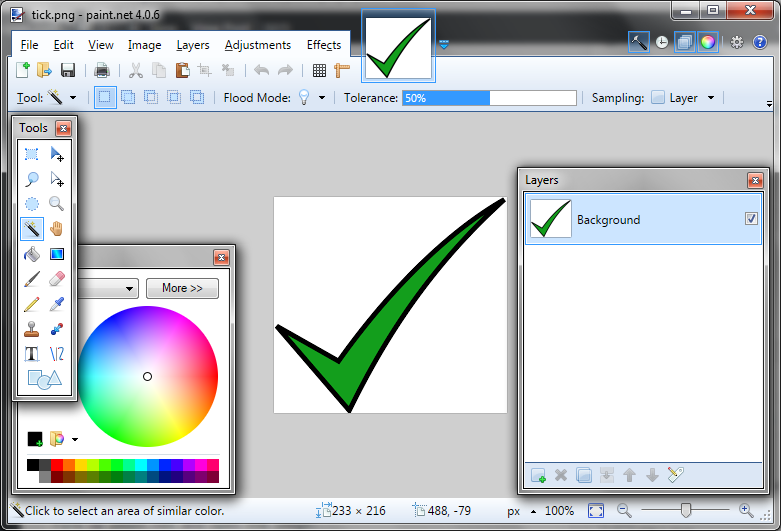
paintdotnet1

Select the magic wand tool. You may need to adjust the tolerance setting shown, but for this example I kept it on 50%. Then click anywhere on the image’s white background:
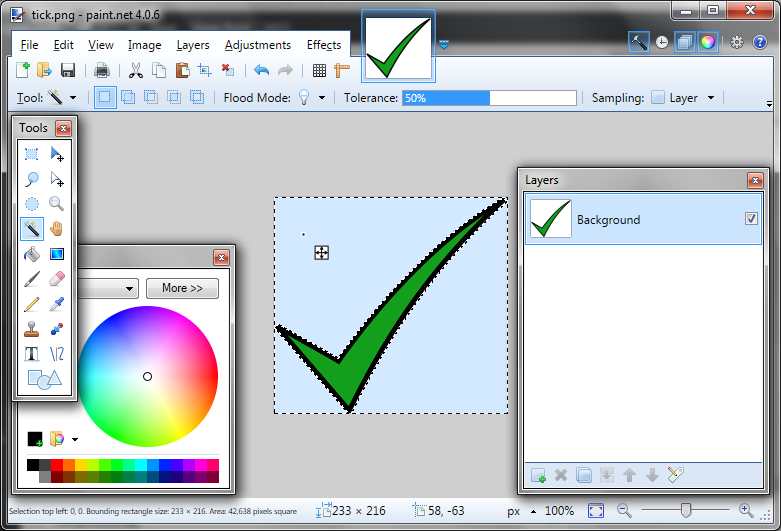
paintdotnet2

Use Erase Selection from the drop down menu or just hit the Delete button:
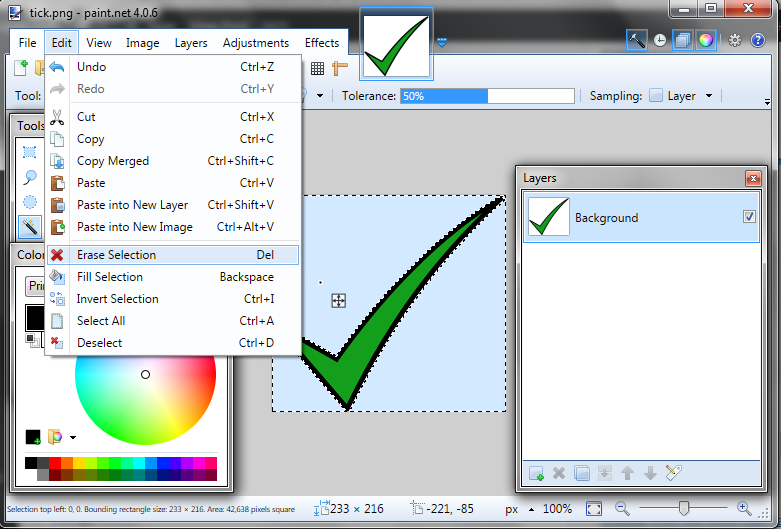
paintdotnet3

So that what you end up with is your original tick symbol minus the white background:
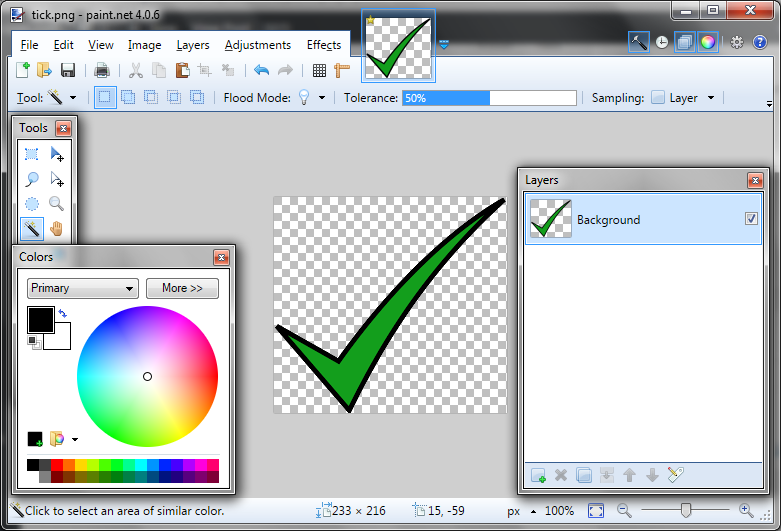
paintdotnet4

Comments

5 responses to “Making png images transparent using paint.net”

  1. HalfAlive Avatar
    HalfAlive

    this does not work. simply removing the white background will not work on bmp files. this tutorial is too simple. try and do some research..

    1. Andy Avatar
      Andy

      Please accept a full refund for non-delivery. Any practical solutions and suggestions from yourself would be most welcome.

  2. pmueller Avatar
    pmueller

    But HalfALive is correct. This does not work. I use bitmaps in a windows application on Windows 10 and when you make
    the transparence as described, the background is always white.

    1. Andy Avatar
      Andy

      Fair enough. But I did this post using Windows 7, some time ago. Things change. Over time this sometimes results in things no longer working as they once did. I’d be happy to re-visit this – PROVIDED the person making the request is not so supercilious and sanctimonious.

  3. CHERYL Avatar
    CHERYL

    Thank you so much for your help 🙂