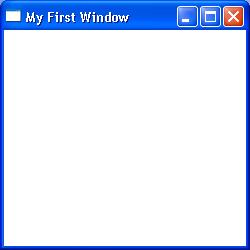
A short example of how to started with Windows programming in non-Visual Studio environments.
In this example, we use the MinGW (Minimalist GNU for Windows) compiler within the Code::Blocks integrated development environment.
MinGW can be obtained via the following link:
First select File > New > Project… and opt to create a new empty project:
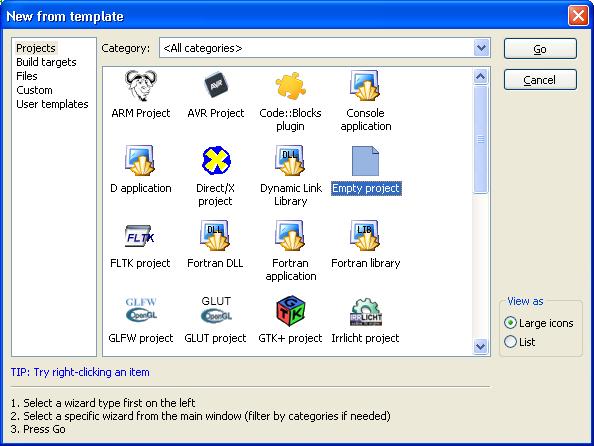
And then name and create the project:
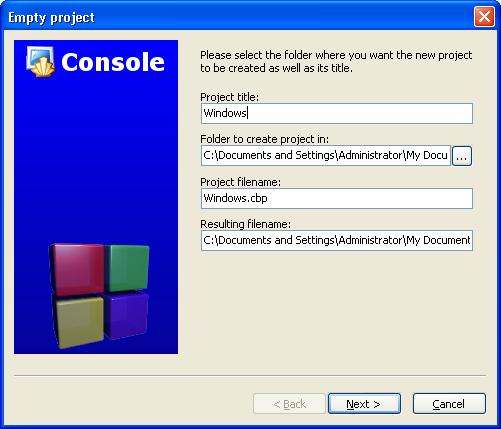
Select the compiler
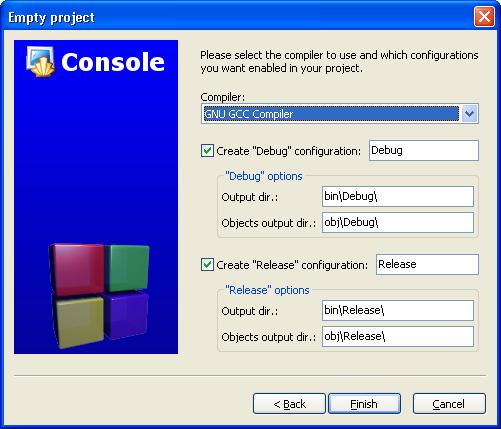
And then click Finish.
Create a new main.cpp file for the project and use the example code to exercise Windows functionality:
#include <windows.h>
#include <set>

#define WIN32_LEAN_AND_MEAN

const unsigned radius = 3;
int xPos = 0;
int yPos = 0;
typedef std::pair<int, int> coordinate;
typedef std::set<coordinate>::const_iterator coord_iter;

// Step 4: Process any message sent to the Window
LRESULT CALLBACK WndProc(HWND hwnd,
                         UINT message,
                         WPARAM wParam,
                         LPARAM lParam)
{
    PAINTSTRUCT paintStruct;
    HDC hDC;
    HBRUSH hOldBrush, hNewBrush;
    static std::set<coordinate> coords;

    switch( message )
    {
        case WM_CREATE:
            return 0;
            break;

        case WM_CLOSE:
            PostQuitMessage(0);
            return 0;
            break;

        case WM_PAINT:
            // Paint the set of circles
            hDC = BeginPaint( hwnd, &paintStruct );
            hNewBrush = CreateSolidBrush(RGB(255, 255, 0));
            hOldBrush = (HBRUSH) SelectObject(hDC, hNewBrush);

            for ( coord_iter it = coords.begin();
                  it != coords.end();
                  ++it )
            {
                const int x = (*it).first;
                const int y = (*it).second;
                Ellipse( hDC, x - radius, y + radius, x + radius, y - radius );
            }

            SelectObject(hDC, hOldBrush);
            DeleteObject(hNewBrush);
            EndPaint(hwnd, &paintStruct);
            return 0;
            break;

        case WM_MOUSEMOVE:
            // Store the mouse cursor position at every movement
            xPos = LOWORD(lParam);
            yPos = HIWORD(lParam);
            break;

        case WM_LBUTTONDOWN:
            // Store unique set of mouse coordinates and redraw
            coords.insert( std::make_pair( xPos, yPos ) );
            InvalidateRect(hwnd, NULL, TRUE);
            break;

        default:
            break;
    }

    return DefWindowProc( hwnd, message, wParam, lParam );
}

int APIENTRY WinMain(HINSTANCE hInstance,
                     HINSTANCE hPrevInstance,
                     LPSTR     lpCmdLine,
                     int       nCmdShow)
{
    WNDCLASSEX  windowClass;        // window class
    HWND        hwnd;               // window handle
    MSG         msg;                // message

    // Step 1: Create the Windows class, exit if unsuccessful
    windowClass.cbSize = sizeof( WNDCLASSEX );
    windowClass.style = CS_HREDRAW | CS_VREDRAW;
    windowClass.lpfnWndProc = WndProc;
    windowClass.cbClsExtra = 0;
    windowClass.cbWndExtra = 0;
    windowClass.hInstance = hInstance;
    windowClass.hIcon = LoadIcon( NULL, IDI_APPLICATION );
    windowClass.hCursor = LoadCursor( NULL, IDC_ARROW );
    windowClass.hbrBackground = (HBRUSH) GetStockObject( WHITE_BRUSH );
    windowClass.lpszMenuName = NULL;
    windowClass.lpszClassName = "MyClass";
    windowClass.hIconSm = LoadIcon( NULL, IDI_WINLOGO );

    // Step 2: Register the window, exit if unsuccessful
    if ( !RegisterClassEx(&windowClass) ) return 0;

    // Step 3: Create the window, exit if unsuccessful
    if ( !CreateWindowEx(
            NULL,                       // extended style
            "MyClass",                  // class name
            "My First Window",          // app name
            WS_OVERLAPPEDWINDOW | WS_VISIBLE | WS_SYSMENU,  // window style
            50,                     // x coordinate
            50,                     // y coordinate
            250,                    // width
            250,                    // height
            NULL,                   // handle to parent
            NULL,                   // handle to menu
            hInstance,              // application instance
            NULL ) ) return 0;      // no extra parameter's

    // Step 4: Enter the main message loop and event handling
    while(GetMessage(&msg, NULL, 0, 0) > 0)
    {
        TranslateMessage(&msg);
        DispatchMessage(&msg);
    }

    return msg.wParam;
}
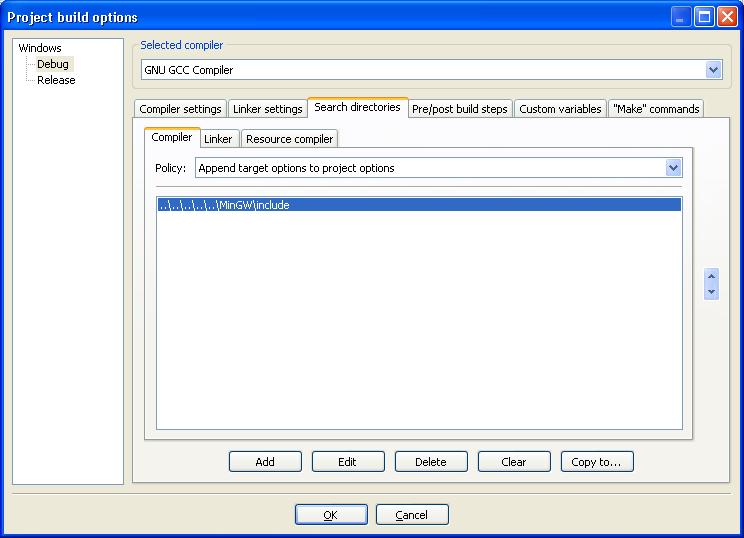
Right-click the project folder and select Build Options.
Select the Search Directories tab, followed by the Compiler tab. Click Add to set the location of the MinGW include directory:
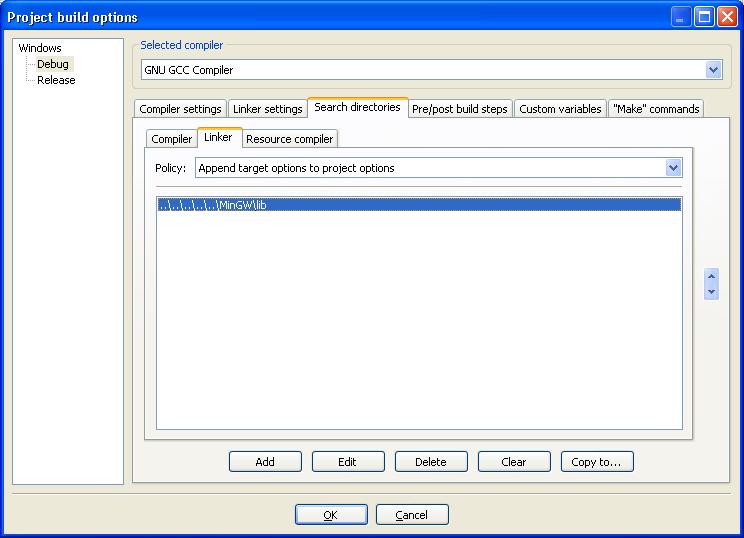
Then select the Linker tab and set the location of the MinGW libraries:
Now select the Linker Setting tab. Use this dialog set the names of the MinGW libraries we will want to use. For this simple example we will need to add the gdi32 library:
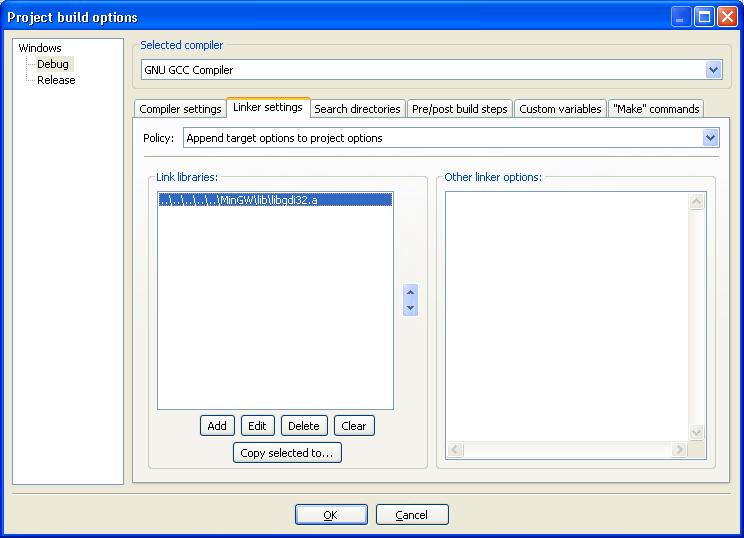
The should be the only steps necessary to enable this example to compile and run.
Now run it to generate our very first Windows example within Code::Blocks: