Some instructions on how to intercept events when clicking on Listview controls in WPF / MVVM.
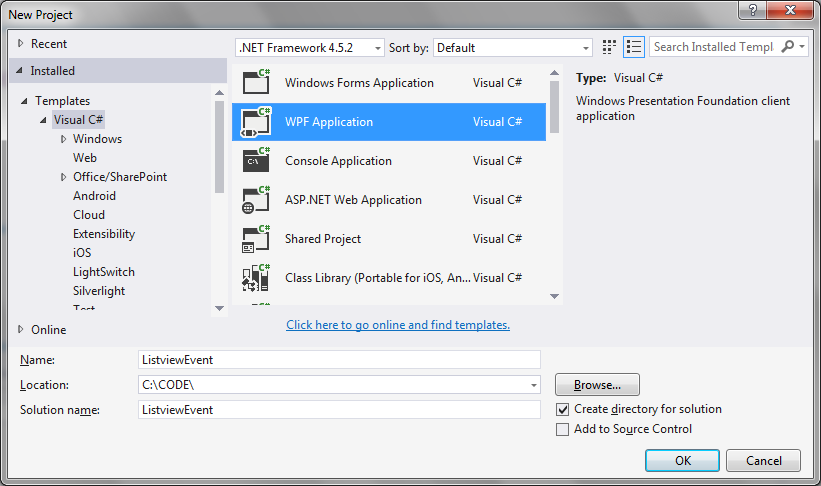
Step 1: Create a new WPF application in Visual Studio
Step 2: Ensure necessary resources are added
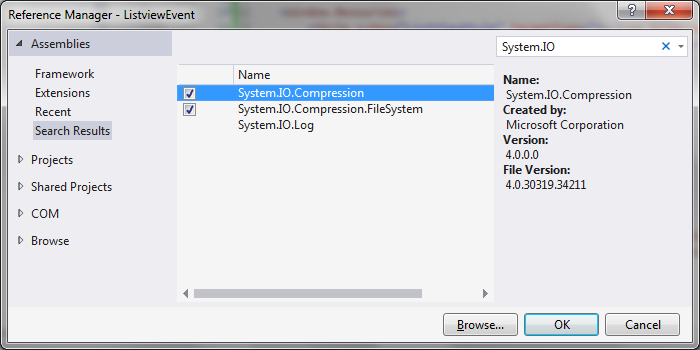
System.IO.Compression
System.IO.Compression.FileSystem
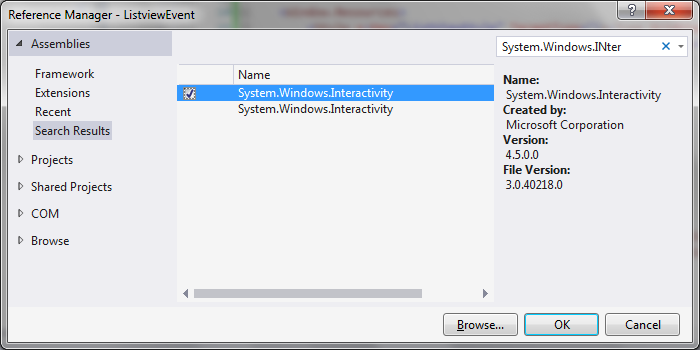
System.Windows.Interactivity
Step 3: Add the MainWindowViewModel class
MainWindowViewModel.cs
using System.Collections.Generic;
using System.Windows;
using System.Windows.Input;

namespace ListviewEvent
{
   public class Item
   {
      public Item(string name, string matches)
      {
         Name = name;
         Matches = matches;
      }

      public string Name { get; set; }
      public string Matches { get; set; }
   }

   public class ItemHandler
   {
      public ItemHandler()
      {
         Items = new List<Item>();
      }

      public List<Item> Items { get; private set; }

      public void Add(Item item)
      {
         Items.Add(item);
      }
   }

   public class MainWindowViewModel
   {
      private readonly ItemHandler _itemHandler;
      private ICommand _command;

      public MainWindowViewModel()
      {
         _itemHandler = new ItemHandler();
         _itemHandler.Add(new Item("John Doe", "12"));
         _itemHandler.Add(new Item("Jane Doe", "133"));
         _itemHandler.Add(new Item("Sammy Doe", "45"));
      }

      public List<Item> Items
      {
         get { return _itemHandler.Items; }
      }

      public ICommand Command
      {
         get { return _command ?? (_command = new RelayCommand(x =>
         {
            DoStuff(x as Item);
         })); }
      }

      private void DoStuff(Item item)
      {
         MessageBox.Show(item.Name + " element clicked");
      }
   }
}
Step 4: Update the MainWindow.xaml to create the Listview example
MainWindow.xaml
<Window x:Class="ListviewEvent.MainWindow"
        xmlns="http://schemas.microsoft.com/winfx/2006/xaml/presentation"
        xmlns:x="http://schemas.microsoft.com/winfx/2006/xaml"
        xmlns:d="http://schemas.microsoft.com/expression/blend/2008"
        xmlns:mc="http://schemas.openxmlformats.org/markup-compatibility/2006"
        xmlns:local="clr-namespace:ListviewEvent"
        xmlns:i="http://schemas.microsoft.com/expression/2010/interactivity"
        mc:Ignorable="d"
        Title="MainWindow" Height="350" Width="525">

    <Window.DataContext>
        <local:MainWindowViewModel/>
    </Window.DataContext>

    <Window.Resources>
        <Style x:Key="ListViewStyle" TargetType="{x:Type GridViewColumnHeader}">
            <Setter Property="HorizontalContentAlignment" Value="Left" />
        </Style>
    </Window.Resources>

    <Grid>
        <ListView
            Margin="10"
            Name="ListView1"
            ItemsSource="{Binding Items}"
            HorizontalAlignment="Left"
            HorizontalContentAlignment="Left">

            <i:Interaction.Triggers>
                <i:EventTrigger EventName="MouseDoubleClick">
                    <i:InvokeCommandAction
                        Command="{Binding Command}"
                        CommandParameter="{Binding ElementName=ListView1, Path=SelectedItem}"/>
                </i:EventTrigger>
            </i:Interaction.Triggers>

            <ListView.View>
                <GridView>
                    <GridViewColumn HeaderContainerStyle="{StaticResource ListViewStyle}" Header="Name" Width="320" DisplayMemberBinding="{Binding Name}" />
                    <GridViewColumn HeaderContainerStyle="{StaticResource ListViewStyle}" Header="Matches" Width="80" DisplayMemberBinding="{Binding Matches}" />
                </GridView>
            </ListView.View>
        </ListView>
    </Grid>

</Window>
Step 5: Add event handling classes
EventArgs.cs
using System;

namespace ListviewEvent
{
   public class EventArgs<T> : EventArgs
   {
      public EventArgs(T value)
      {
         Value = value;
      }

      public T Value { get; private set; }
   }
}
EventRaiser.cs
using System;

namespace ListviewEvent
{
   public static class EventRaiser
   {
      public static void Raise(this EventHandler handler, object sender)
      {
         handler?.Invoke(sender, EventArgs.Empty);
      }

      public static void Raise<T>(this EventHandler<EventArgs<T>> handler, object sender, T value)
      {
         handler?.Invoke(sender, new EventArgs<T>(value));
      }

      public static void Raise<T>(this EventHandler<T> handler, object sender, T value) where T : EventArgs
      {
         handler?.Invoke(sender, value);
      }

      public static void Raise<T>(this EventHandler<EventArgs<T>> handler, object sender, EventArgs<T> value)
      {
         handler?.Invoke(sender, value);
      }
   }
}
RelayCommand.cs
using System;
using System.Windows.Input;

namespace ListviewEvent
{
   public class RelayCommand<T> : ICommand
   {
      private readonly Predicate<T> _canExecute;
      private readonly Action<T> _execute;

      public RelayCommand(Action<T> execute)
         : this(execute, null)
      {
         _execute = execute;
      }

      public RelayCommand(Action<T> execute, Predicate<T> canExecute)
      {
         if (execute == null)
         {
            throw new ArgumentNullException("execute");
         }
         _execute = execute;
         _canExecute = canExecute;
      }

      public bool CanExecute(object parameter)
      {
         return _canExecute == null || _canExecute((T)parameter);
      }

      public void Execute(object parameter)
      {
         _execute((T)parameter);
      }

      public event EventHandler CanExecuteChanged
      {
         add { CommandManager.RequerySuggested += value; }
         remove { CommandManager.RequerySuggested -= value; }
      }
   }

   public class RelayCommand : ICommand
   {
      private readonly Predicate<object> _canExecute;
      private readonly Action<object> _execute;

      public RelayCommand(Action<object> execute)
         : this(execute, null)
      {
         _execute = execute;
      }

      public RelayCommand(Action<object> execute, Predicate<object> canExecute)
      {
         if (execute == null)
         {
            throw new ArgumentNullException("execute");
         }
         _execute = execute;
         _canExecute = canExecute;
      }

      public bool CanExecute(object parameter)
      {
         return _canExecute == null || _canExecute(parameter);
      }

      public void Execute(object parameter)
      {
         _execute(parameter);
      }

      // Ensures WPF commanding infrastructure asks all RelayCommand objects whether their
      // associated views should be enabled whenever a command is invoked
      public event EventHandler CanExecuteChanged
      {
         add
         {
            CommandManager.RequerySuggested += value;
            CanExecuteChangedInternal += value;
         }
         remove
         {
            CommandManager.RequerySuggested -= value;
            CanExecuteChangedInternal -= value;
         }
      }

      private event EventHandler CanExecuteChangedInternal;

      public void RaiseCanExecuteChanged()
      {
         CanExecuteChangedInternal.Raise(this);
      }
   }
}
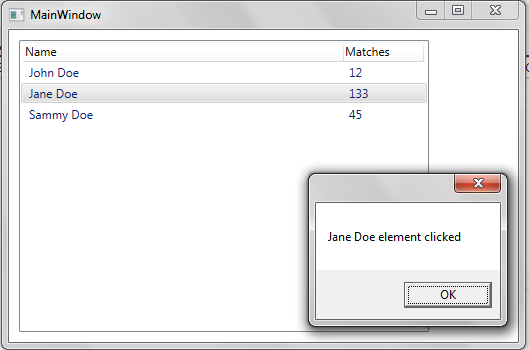
On running the application and double-clicking on one of the Listview items, see that the double-click event is intercepted and a message is shown showing details of the Listview item that was clicked on:
Comments
3 responses to “Handling mouse event commands in Listview controls in WPF / MVVM”
Hi, how can I do the above for a static listview Item. In my project I have list view Item Navigation so I need to have a command binding to navigate the pages when click on list view Item.
Hi navigating WPF/XAML pages on some mouse click / other request is a separate topic. This topic of navigating page view has been discussed previously on the following pages:
https://www.technical-recipes.com/2018/using-the-appccelerate-state-machine-to-navigate-between-wpf-xaml-views/
https://www.technical-recipes.com/2018/navigating-between-views-in-wpf-mvvm/
Thanks 🙂